En esta sección
Sales pending payment
Hiopos enables selecting the "Pending" payment method when finalizing a sale. In these cases, it is always mandatory to assign the sale to a customer to allow for collection tracking. If the customer has not been added, the program displays a warning indicating that it is necessary to assign a customer. Upon clicking Accept, it will load the customer list to add them, and the sale can then be finalized.
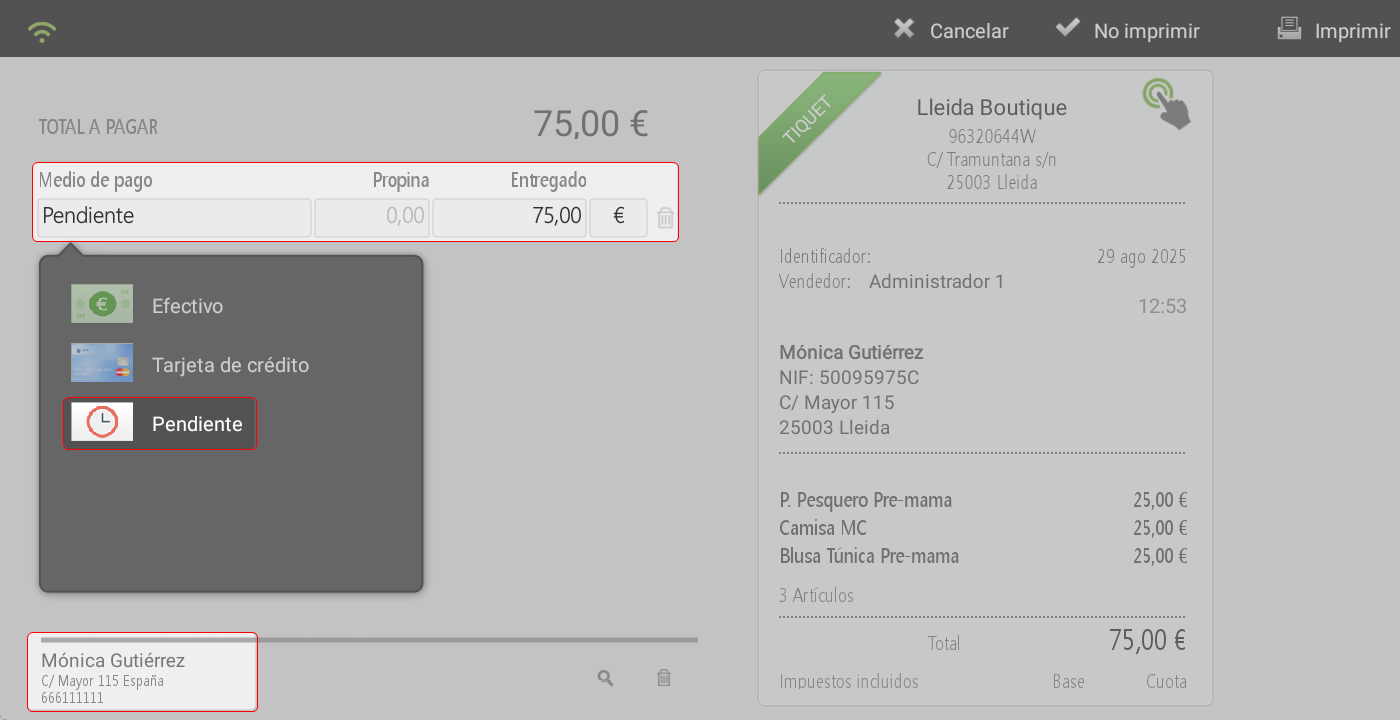
Pending documents can be checked in the following ways:
- When adding a customer to the sale, it has active in red the Earrings Button
- At the top of the screen, selecting Box > Earrings.
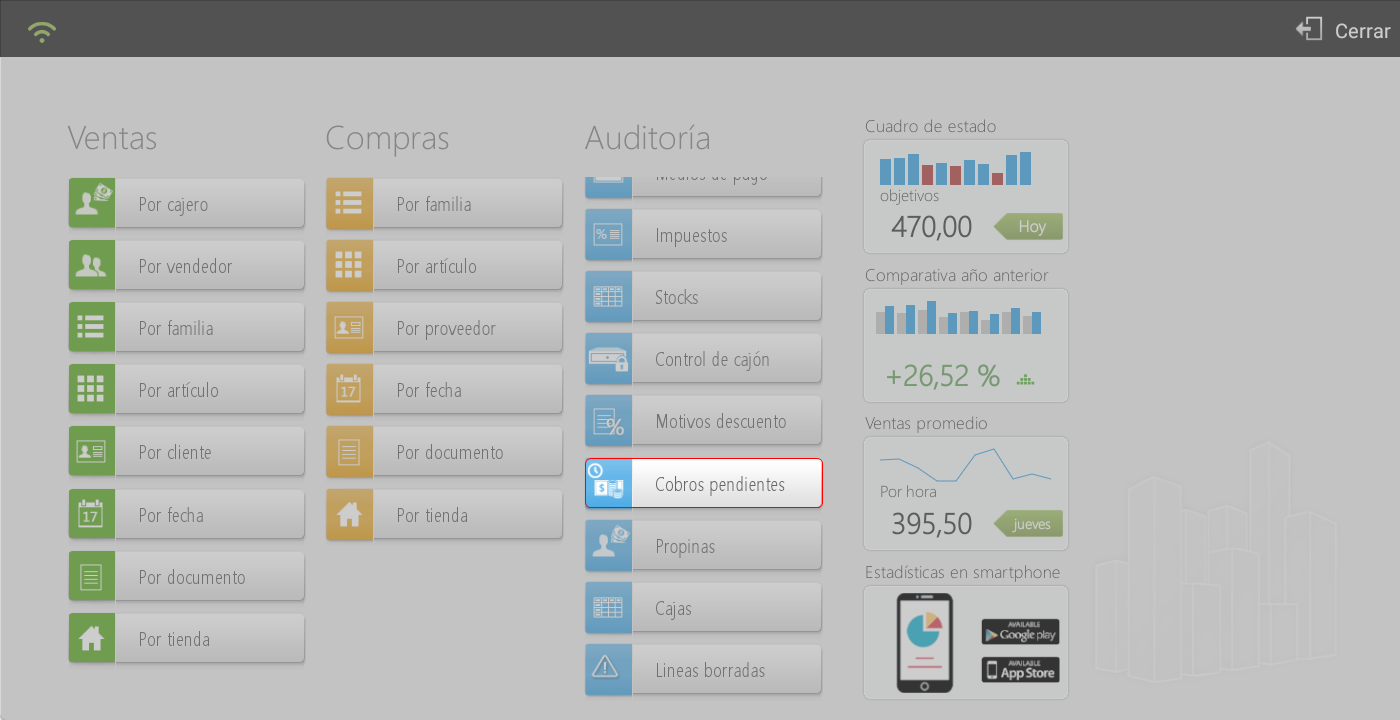
- At the top of the screen, selecting Administration > Statistics > Outstanding payments.
- A customer can have a pending payment method configured by default, and a RISK Maximum outstanding balance allowed for the client.
Earrings Button
Upon clicking the Pending button, the system loads a screen with all outstanding payment documents for the client.

The user can select whether they wish to pay a specific amount o the total amount of a document, using the checkbox located to the right of each record.
At the bottom of the list are presented the totals, differentiating between:
Total outstanding from the client: sum of all outstanding documents.
Transaction total: the amount being paid at that moment.
In the upper right section of the screen are displayed the Customer data.
Below, the following fields are shown:
Date and time of the operation.
Means of payment selected
Comments, in case additional information is desired to be added to the payment.
Amount delivered y change, depending on the payment method:
If the payment is in cash, the amount tendered by the customer and the change due are displayed.
If payment is with credit card, the amount tendered will be equal to the total due and the change will be zero.
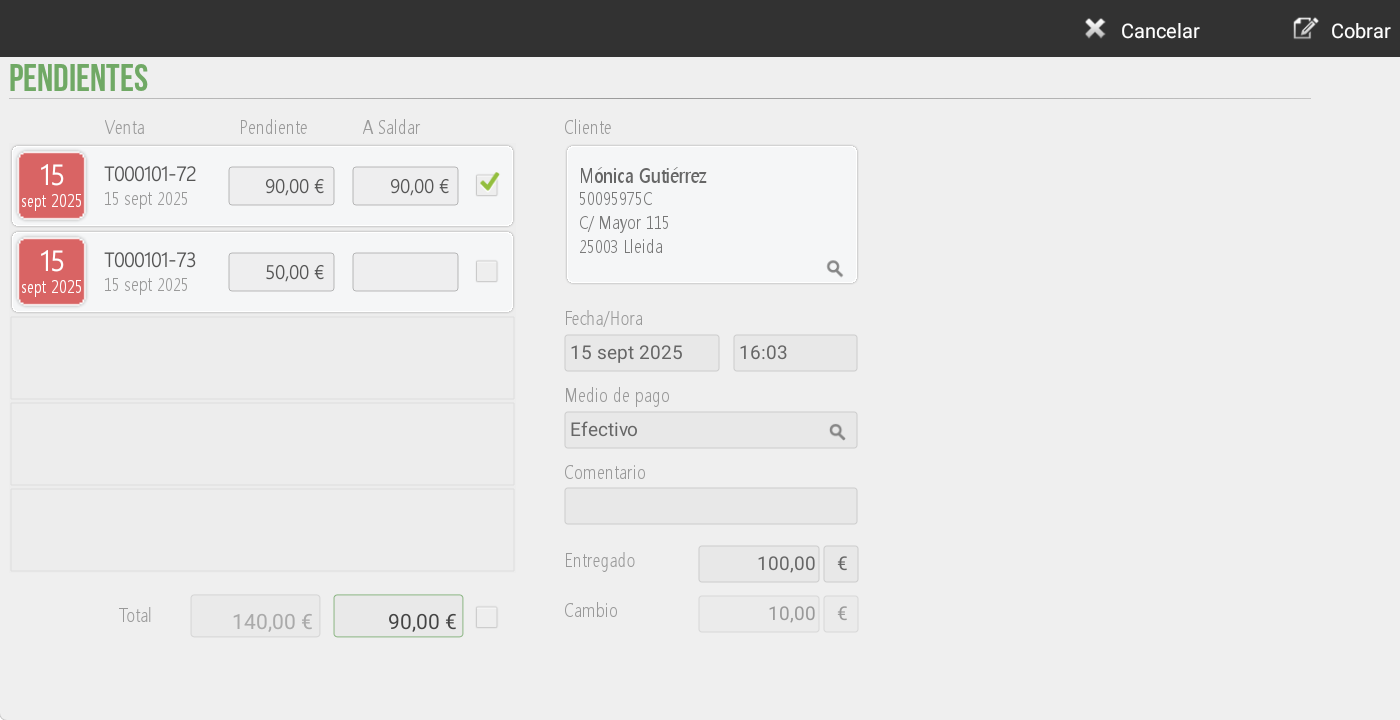
To complete the process, click on the button To collect.
Next, what will be shown on screen is the Payment receipt, where you can view:
Customer data
The paid documents and the amount paid.
The payment method used and its amount.
The change given to the customer.
If the customer still has an outstanding balance, this will appear at the bottom of the receipt.
This voucher can to be printed oh to close to return to the sales screen.
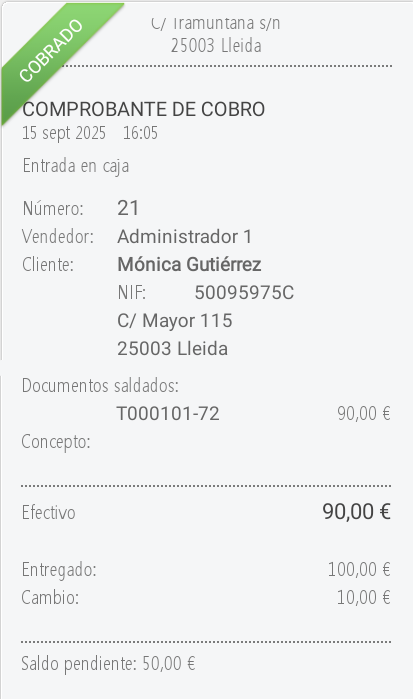
TIP: The client will remain assigned to the sale should they wish to continue buying.
Earrings
Another option to check a client's Pending documents is by clicking at the top of the screen in the Cashier > Pending section.
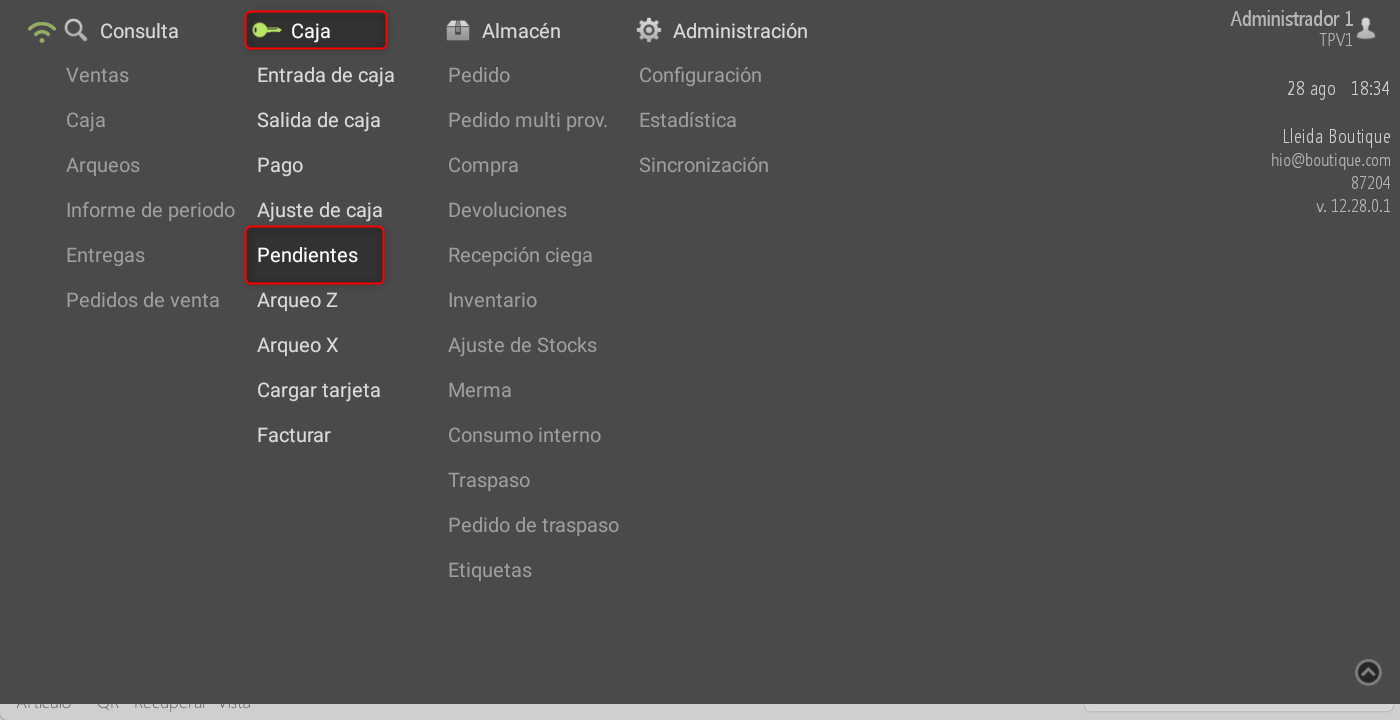
By clicking on Earrings, a screen will be displayed with a list of all clients who have outstanding documents.
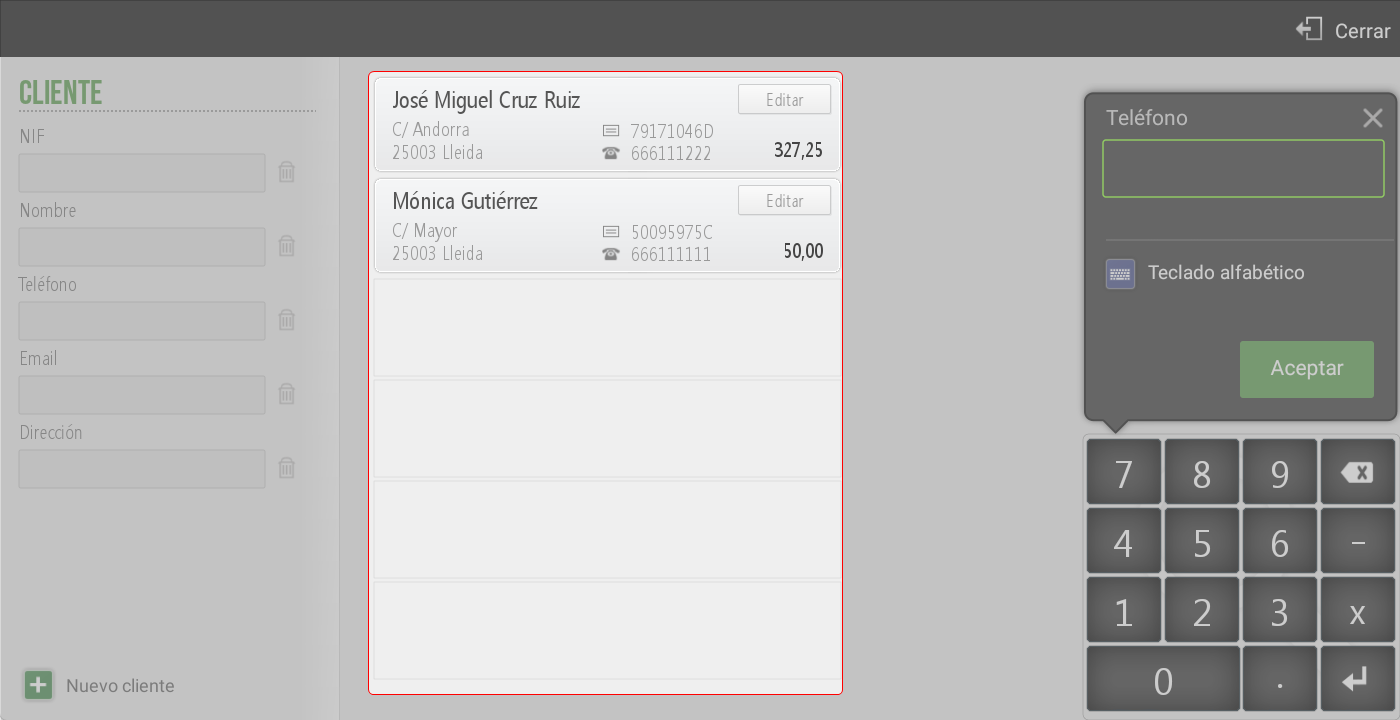
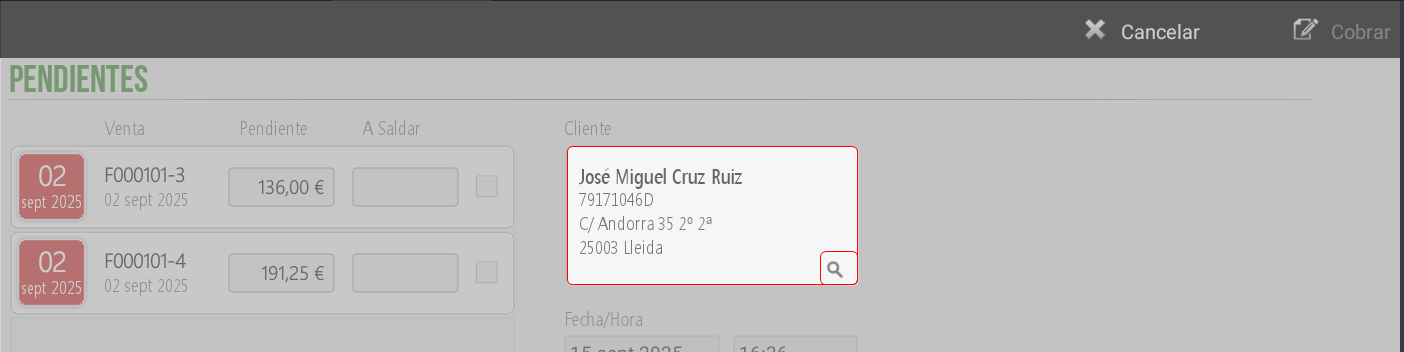
Upon selecting a client, the window for Payments, which works in the same way as the one described in the previous point. By checking outstanding items in this way, it allows that on the payment screen, when pressing the magnifying glass icon for customer information, the system reloads the list of customers with outstanding documents, which allows modifying the customer and checking their pending payments.
Outstanding Payments
At the top of the screen, by selecting Administration > Statistics > Outstanding payments, you can consult the establishment's pending documents.
The "Pending Collections by Customer" screen displays a list of customers with outstanding balances and the total amount remaining to be paid. At the top, documents can be filtered by Store, Cash Register, and/or Cash Reconciliation.
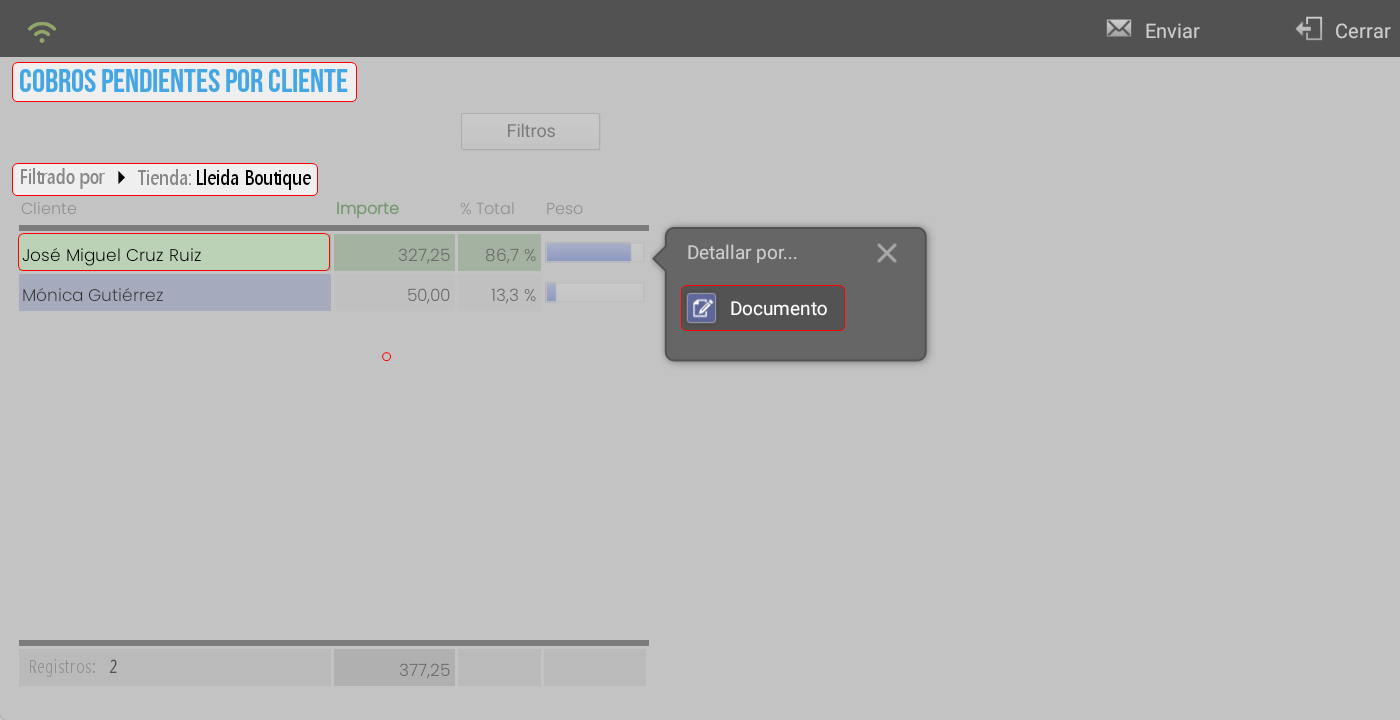
By clicking on a client's information line, a PopUp for 'Detail by… Document' opens. Upon clicking the Document button, a list will be displayed showing the client's outstanding documents and the pending amount for each.
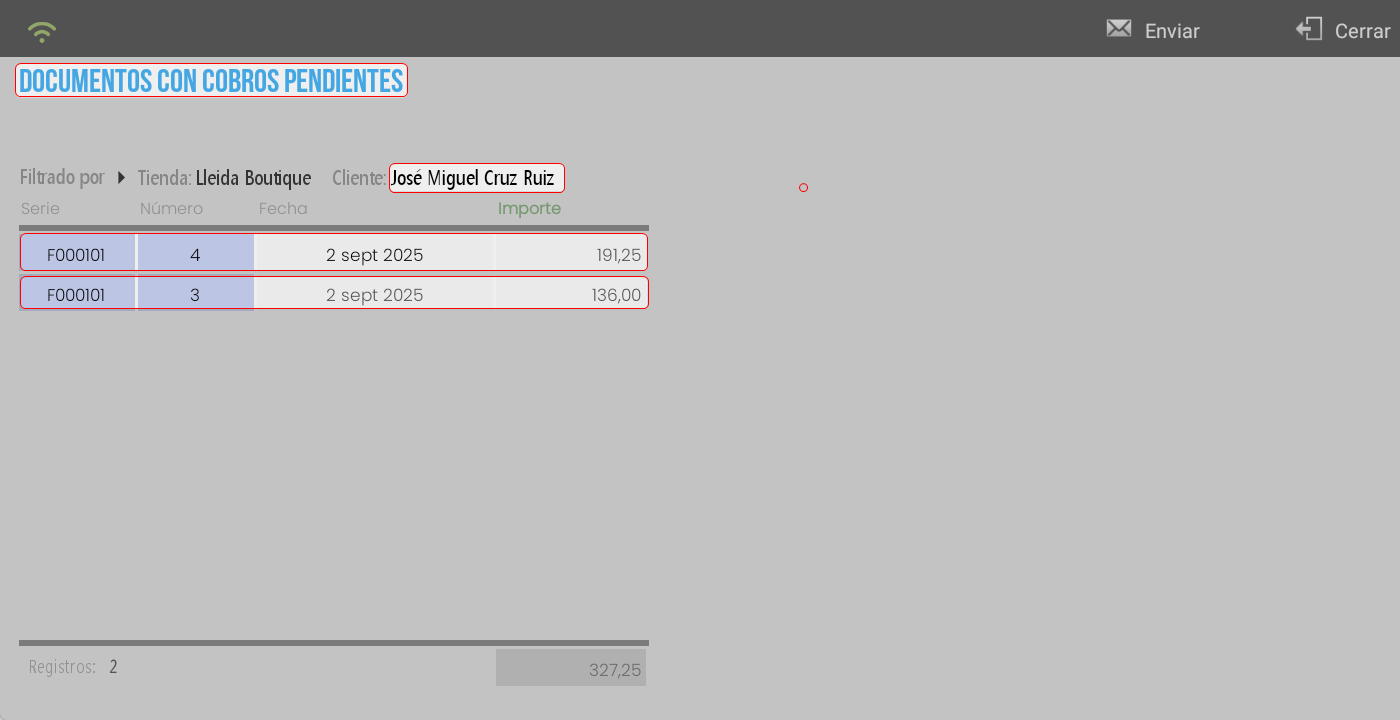
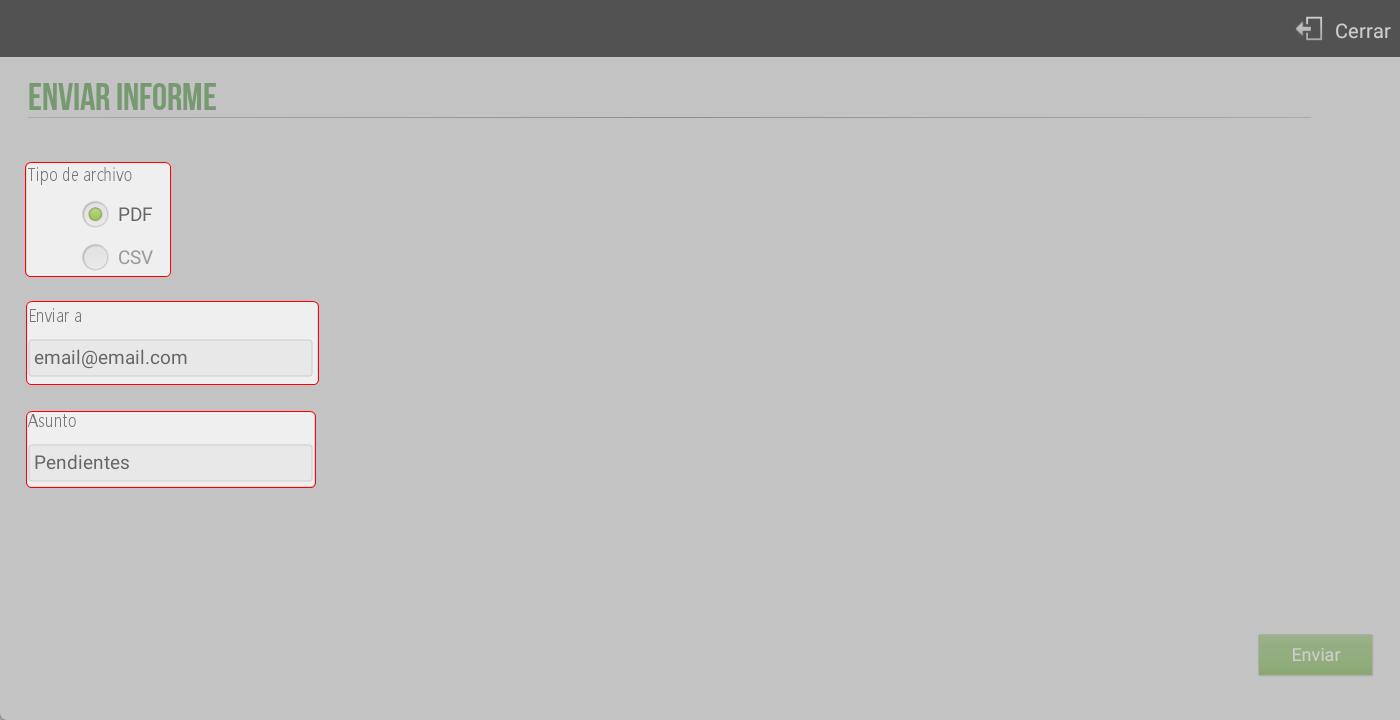
TIP: These screens are for informational purposes only, so you do not have the option to collect pending payments. Documents can be sent via email for processing, with CSV or PDF format options, and by adding a subject. By default, the program suggests the establishment's email, but you can change it if desired.
Customer risk
Risk Management in the Client File
On each client's record, it is possible to assign:
A payment method “Pending”.
A maximum amount of risk Allowed outstanding debt limit.
When, during a sale, the customer is about to exceed the assigned risk, the system will automatically display a risk report screen before completing the operation.
For this functionality to operate correctly, the following aspects must be configured:
1. Assignment of risk to the client
When establishing a risk amount on the client's record, it is common that they are also assigned a Payment method "Pending" as the default option.
2. Terminal Configuration
Access from: Administration > Terminal type > In the Total section
Verify that the option Assess client risk is configured to YES.

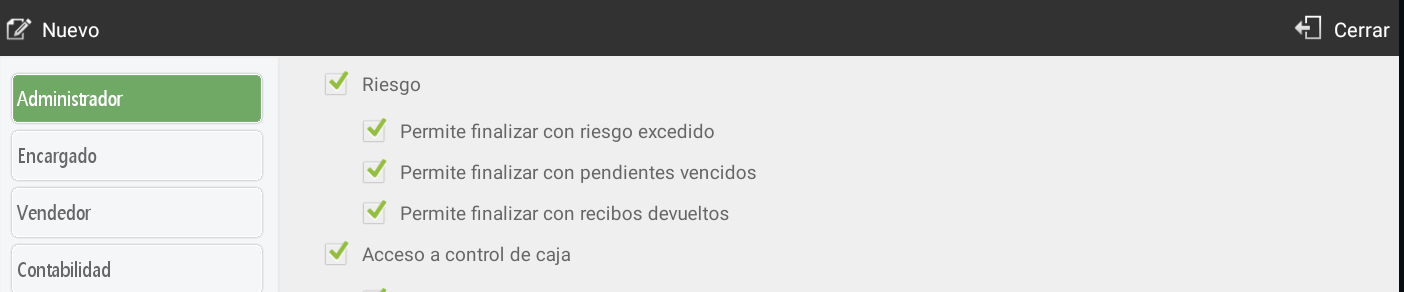
3. User profile
Access from: Administration > Sellers > User profiles
Define if the employee has permissions for:
Closing a sale with exceeded risk.
Finalize a sale with overdue payments.
Finalize a sale with returned receipts.
Risk Report Visualization
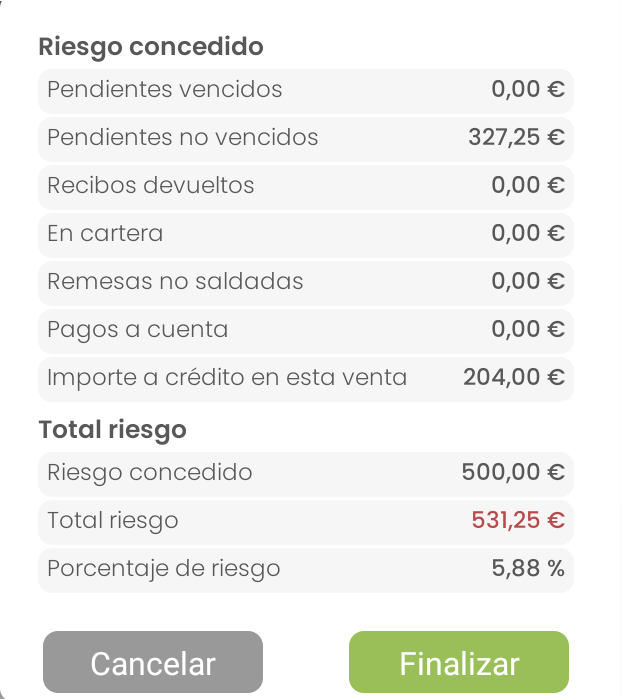
Upon detecting that the client is going to exceed their risk limit, the system will display a report with the following details and the corresponding amounts:
Risk granted
Overdue itemsInvoices or outstanding payments that are past due.
Outstanding, not yet dueInvoices or outstanding payments whose due date has not yet arrived.
Returned receiptsPayments that the bank has rejected or returned.
In portfolioCollection documents not yet presented to the bank.
Outstanding remittancesCollections sent to the bank that have not yet been settled.
Payments on account: Customer prepayments that have not yet been applied to specific invoices.
Amount on credit in the current sale: Part of the ongoing sale that the customer wants to leave pending.
Total risk
Risk granted: Maximum outstanding debt limit authorized for the client.
Total risk: Sum of all the previous concepts compared to the granted risk limit.
Percentage of riskRelationship between the total accumulated risk and the granted risk, expressed in %.
Actions based on employee permissions
If the employee has permissions:
Can finalize the sale, accepting that the client exceeds the risk.
Or rather, cancel the operation and change the payment method to one other than "Pending".
If the employee does not have permissions:
The system will display the report on screen and the option to notify a supervisor. Upon pressing the button, the salespersons screen will be displayed, only with employees who do have permissions.
The authorized supervisor must access the terminal and decide whether or not to accept the client's excess risk.


AI Assistant
Section summary
AI can generate inaccurate information; verify the results.