Fractional Sales
Although splitting a sale is more common in a hospitality business, the system also allows splitting a ticket in a retail business.
Splitting a sale
The function Splitting a sale Allows splitting a ticket into two or more parts to make separate payments.
In the Total screen, click on the ticket. A will open a pop-up menu (PopUp)with several actions available. When selecting Fractionate:
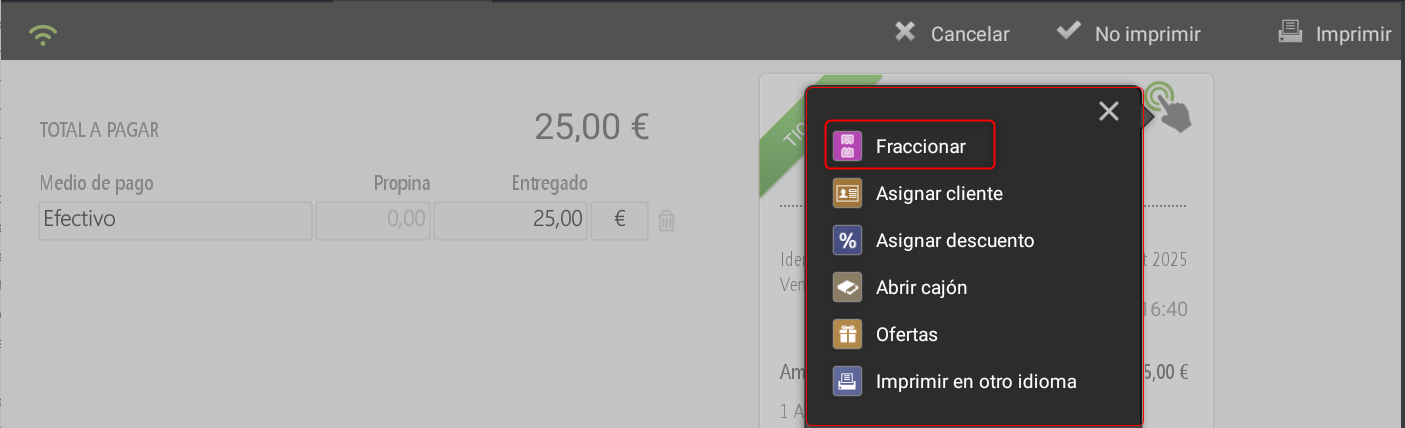
Fractionation screen
Upon entering this option, the system displays two areas:
Upper part: Displays the general options to apply: Distribute For amount Cancel Accept.
Left side: items added to the original ticket.
Right side: items that will be transferred to the second ticket.
Bottom: displays the total for each ticket
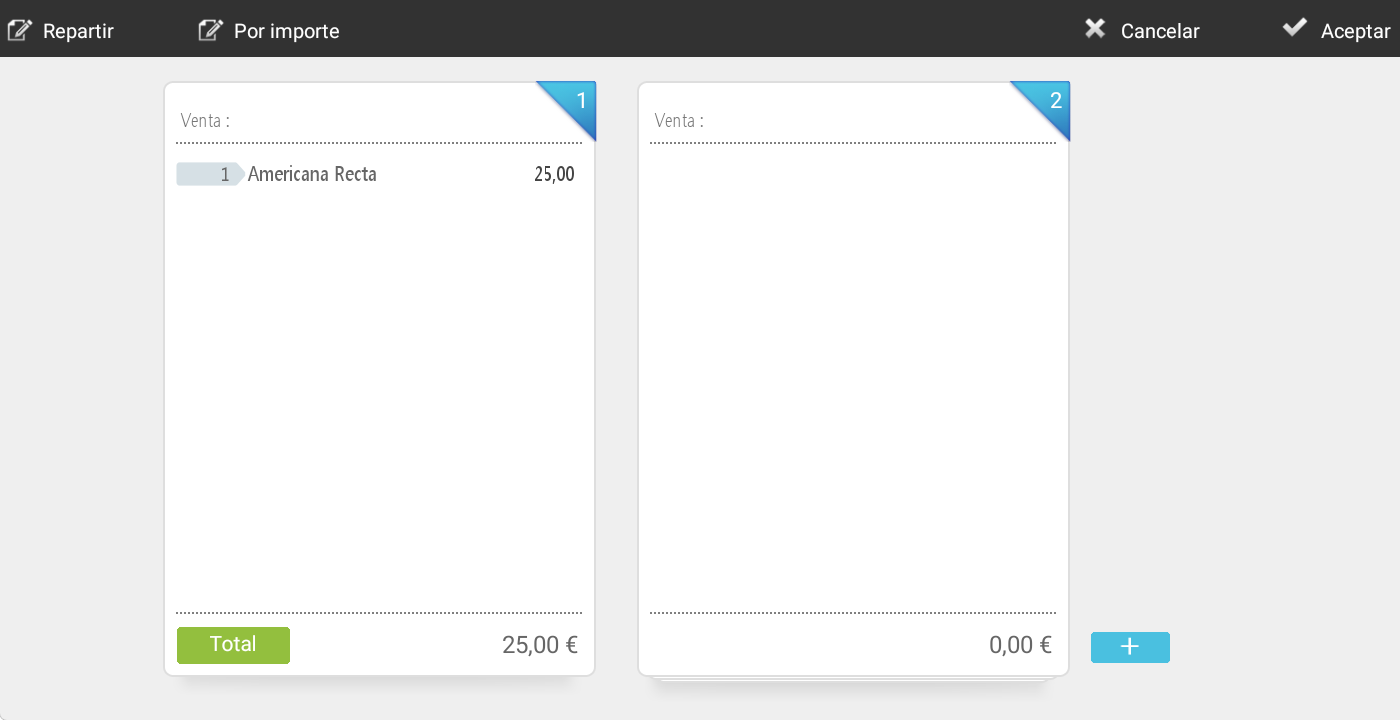
At the top The following options are available:
Distribute: allows dividing a ticket into several fractions. If the ticket is divided into more than two parts, bullet points representing each additional fraction will appear next to the second ticket. These bullet points allow easy selection of the desired fraction for management. The active fraction will be reflected both at the top of the second ticket and in the bullet points. If the symbol ( is pressed+), a new blank fraction can be added to be able to add other fractions or articles.
For the amountallows defining an amount for the second ticket; the system will distribute the entered amount among the items proportionally to the indicated quantity, and any remaining amount will be distributed on the first ticket.
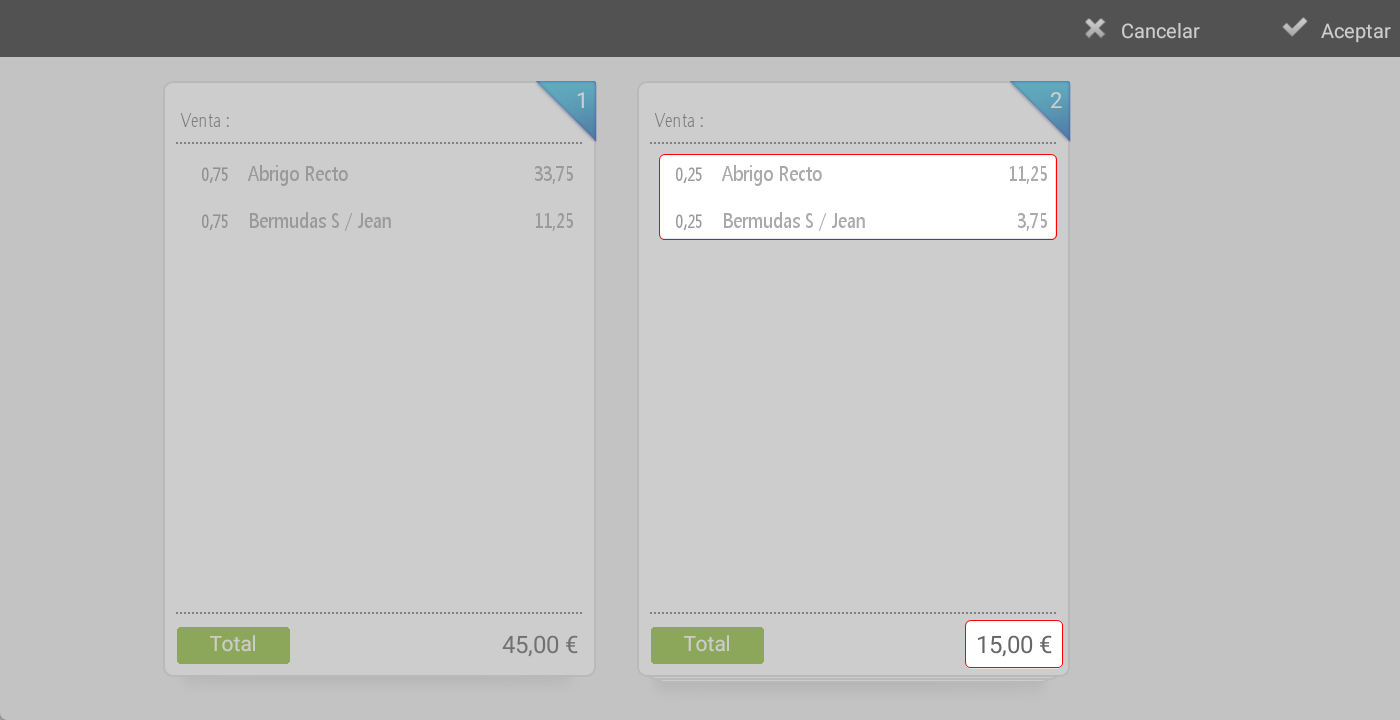
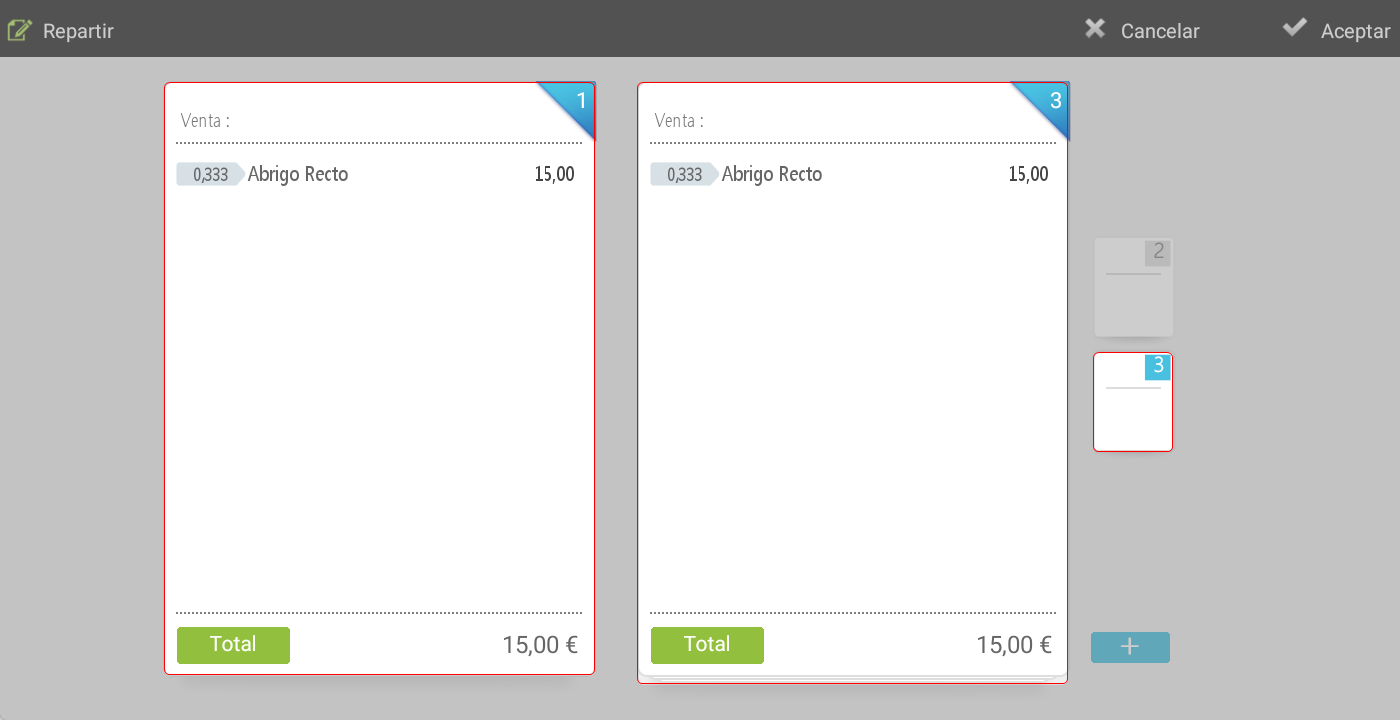
Options on the articles
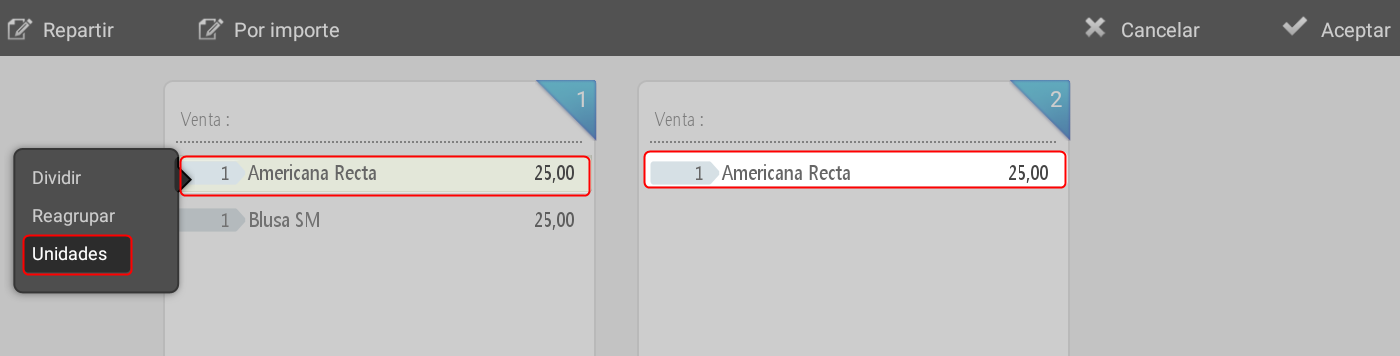
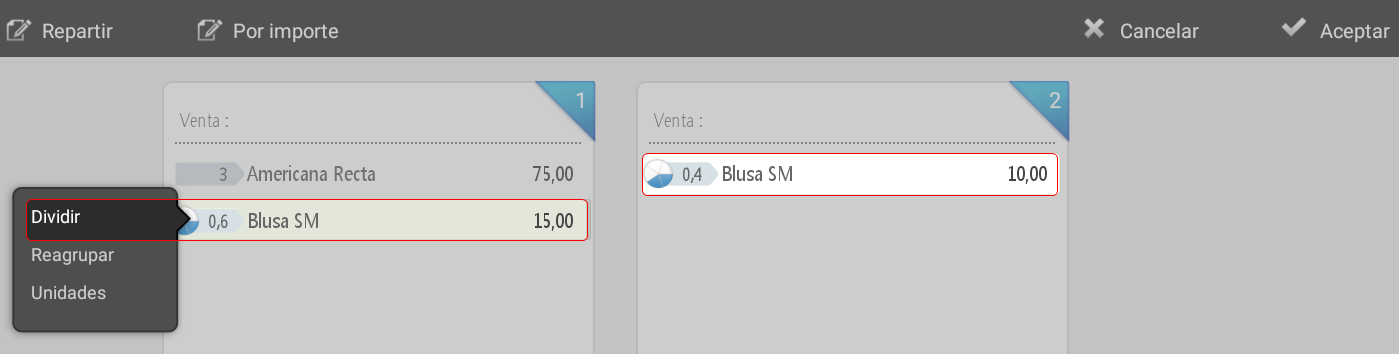
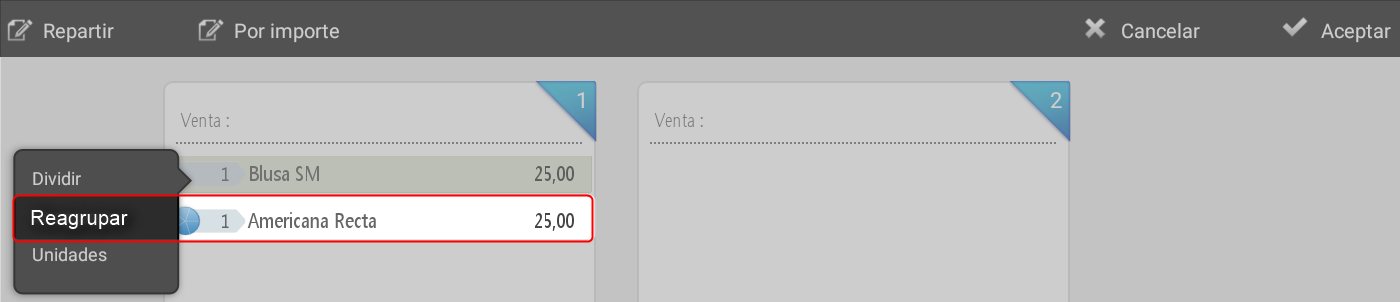
In the central section, any item on the ticket can be selected by long-clicking to apply the following actions:
Dividedefines how many fractions will be made for that item's amount. The system generates a pie chart icon with the indicated divisions; upon clicking it, the amount corresponding to one fraction is transferred to the second ticket. Next to the icon, the corresponding proportional part is numerically displayed on each ticket. Once the item has been added, it can be clicked again to move it from one ticket to another and regroup it.
Regroup: cancels the applied installments and refunds the total amount of the item to the original receipt, as per the receipt on which this option is performed.
Units: allows you to select how many units of the item will be moved to the second ticket.
Split ticket billing
Once the fractions are done and press Accept:
The system returns to the sales screen.
At the top of the ticket, the active fraction number (1, 2, etc.) is indicated.
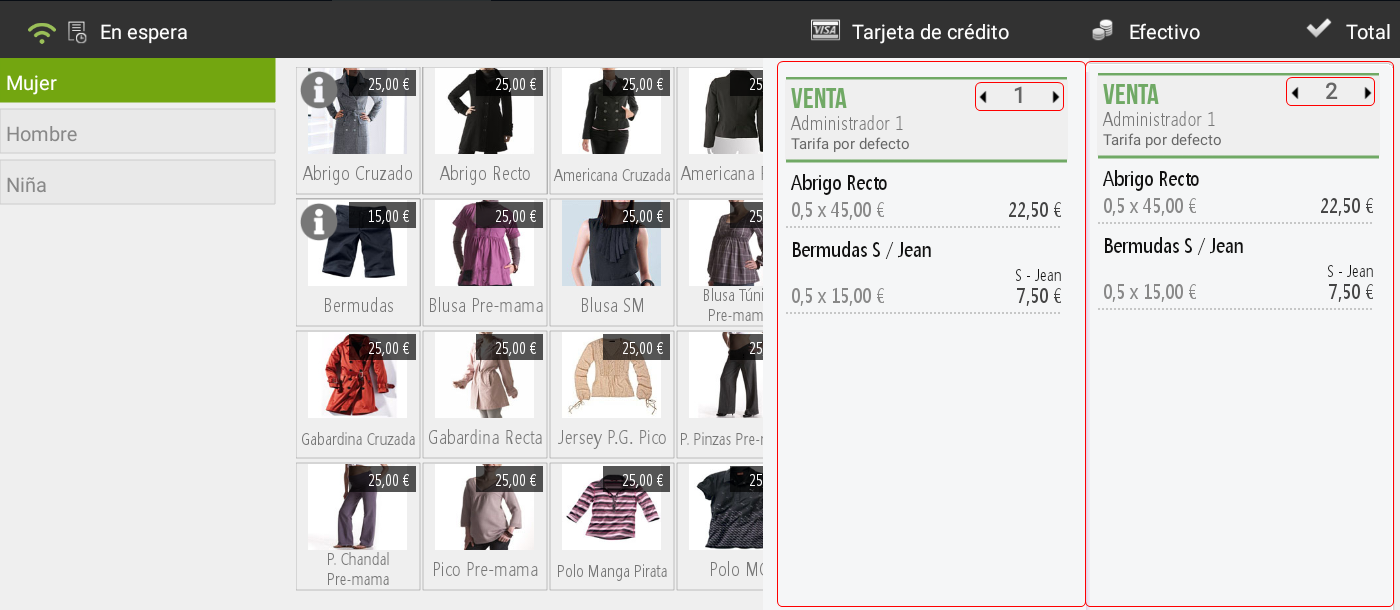
TIP: After totaling a split ticket, it is still possible to re-divide the last ticket into new splits if necessary.
AI Assistant
Section summary
AI can generate inaccurate information; verify the results.