En esta sección
What should the user manage based on the result of the digitalization?
Invoice successfully registered and accounted for

In case of a green result, the invoice has been successfully registered in HIOFFICE. From the list, selecting the document series and number will redirect us to the corresponding document with all data already correctly registered.
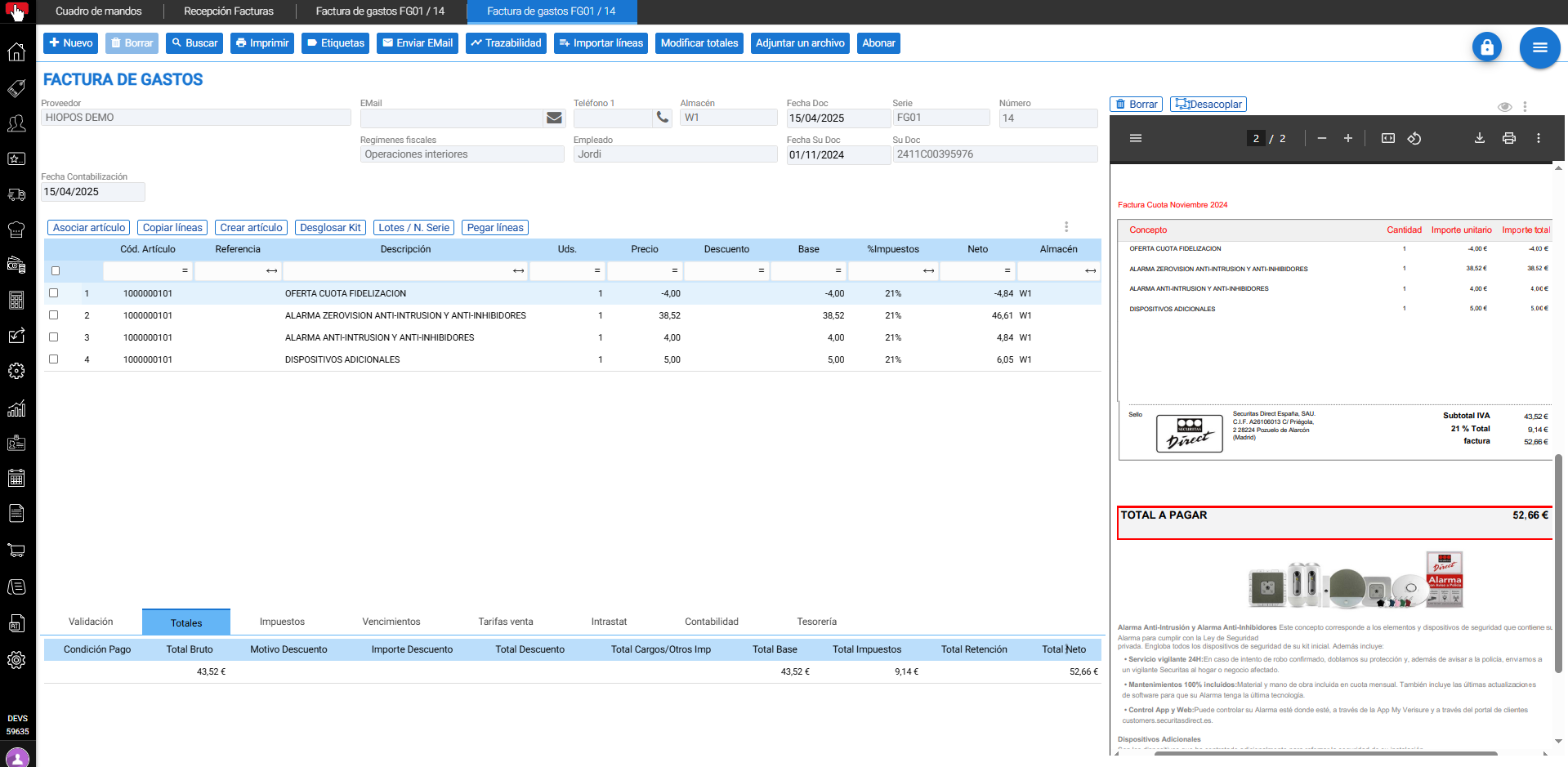
This means that if it is an Invoice type document (Purchase or Expense), it has been recorded in the accounting. From the tab Accounting of the document as shown in the image, the corresponding accounting entries can be viewed, greatly simplifying user management.
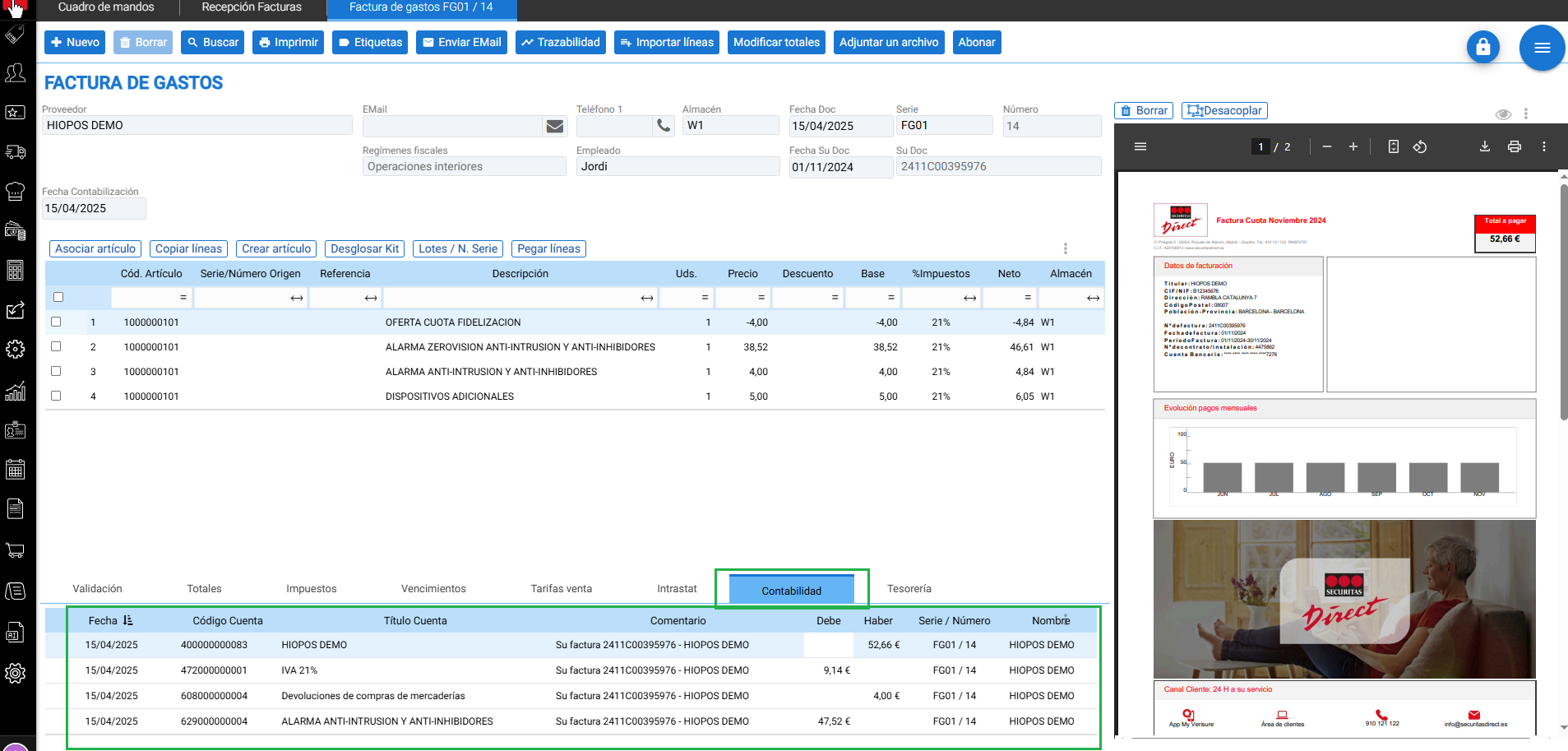
By clicking on the document series and number, we will be able to access the document with its document file and all the information registered in the system, as previously mentioned.
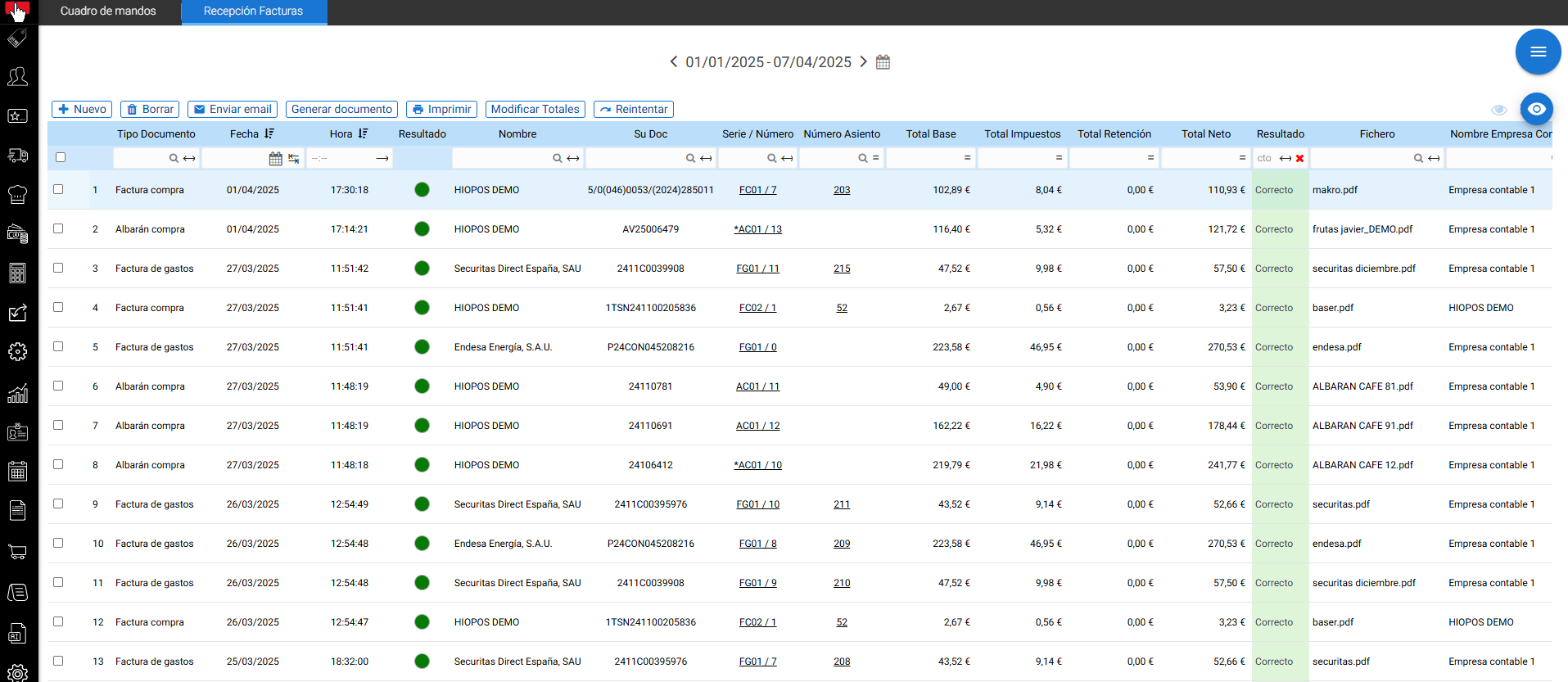
From the document reception list itself, if it is an accounting document, we can directly access the generated entry by clicking on the journal entry number.
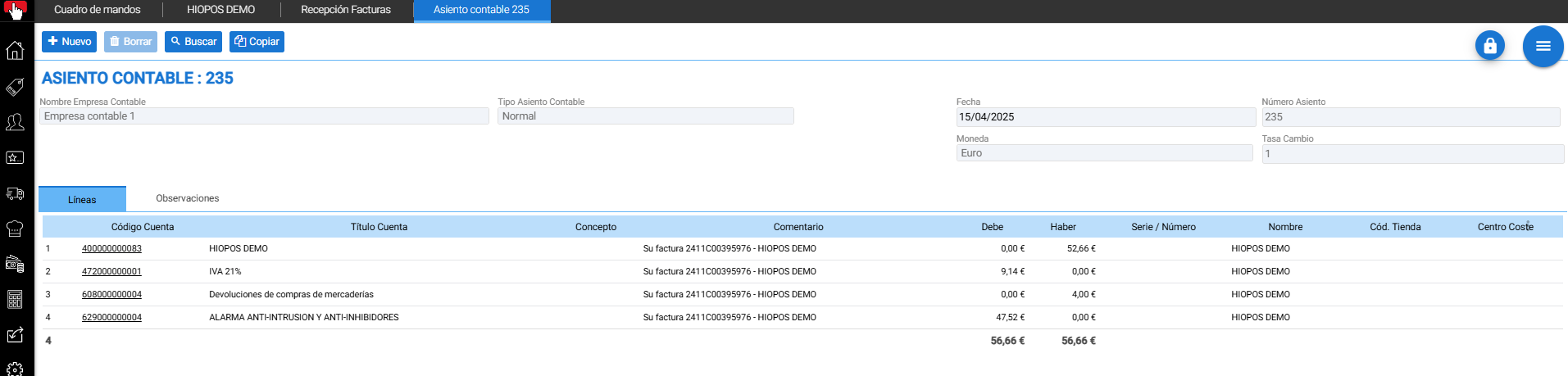
Note: If the warehouse has the cost center associated, it will also be displayed in the entry (last column of the previously attached image).
The format of the invoice is not recognized

If HIOFFICE does not recognize the document, it will appear in red and the document must be registered manually.
From the document list, you will be able to view the corresponding document using the option marked in the image, thus having the option to view the document directly from the same list.
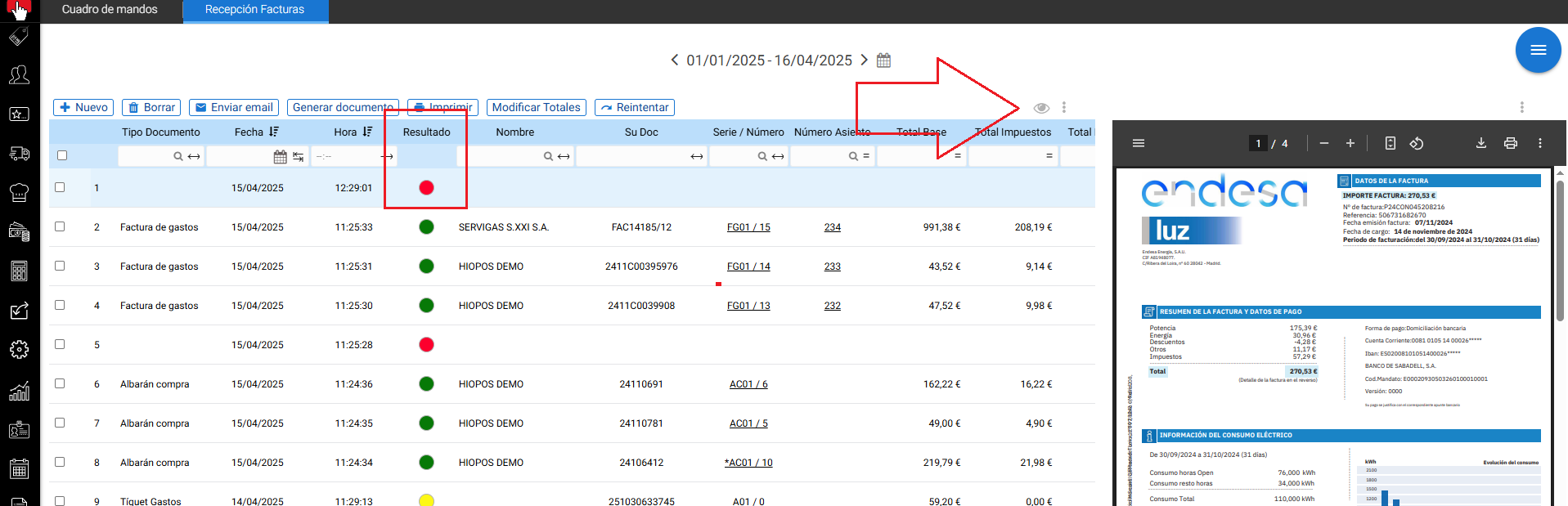
From this very screen, you must select the option GENERATE DOCUMENT .
This option allows manual entry of the document, opening the document creation screen for the selected document type and displaying the corresponding document on the right to quickly record the data.
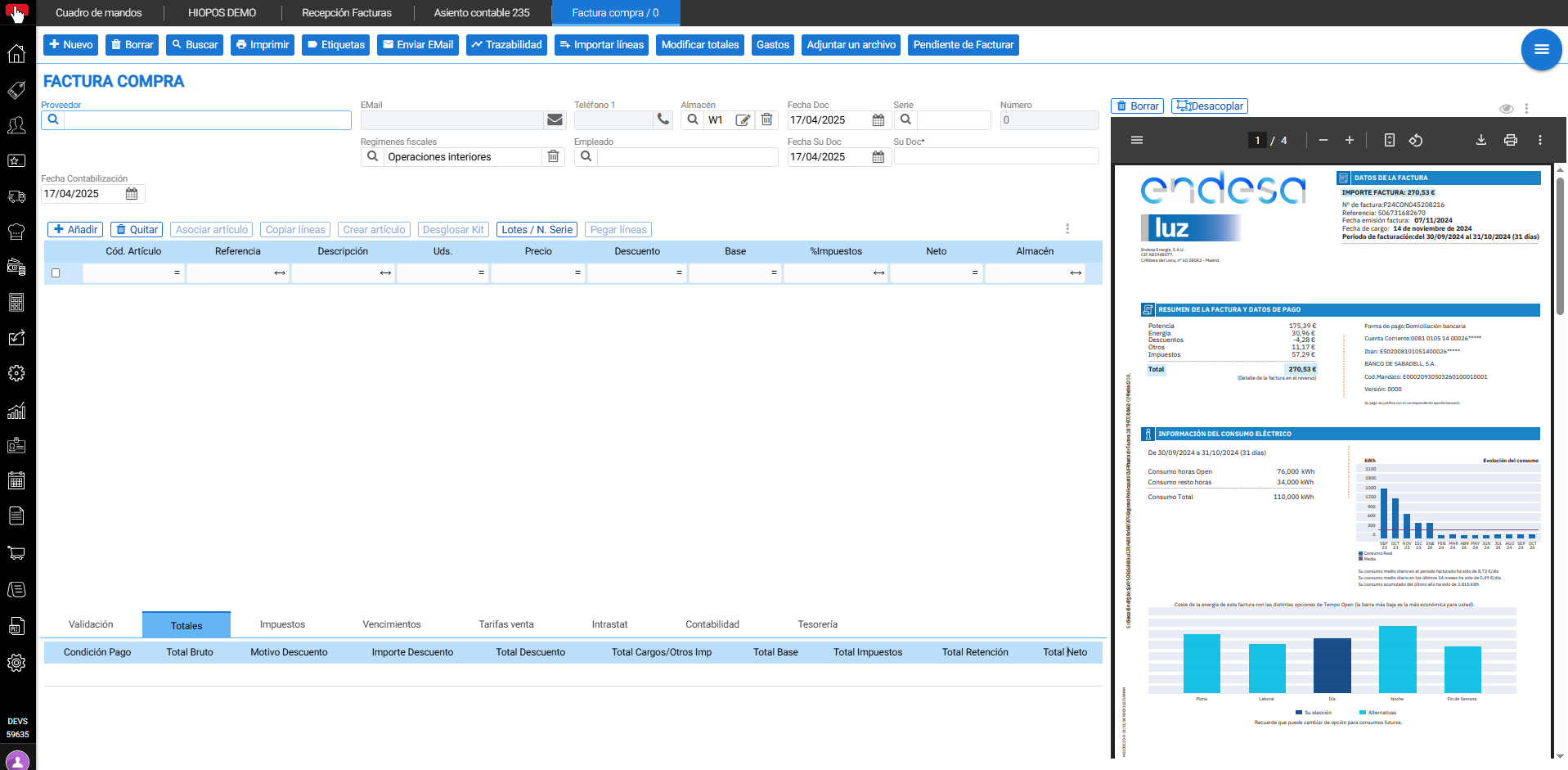
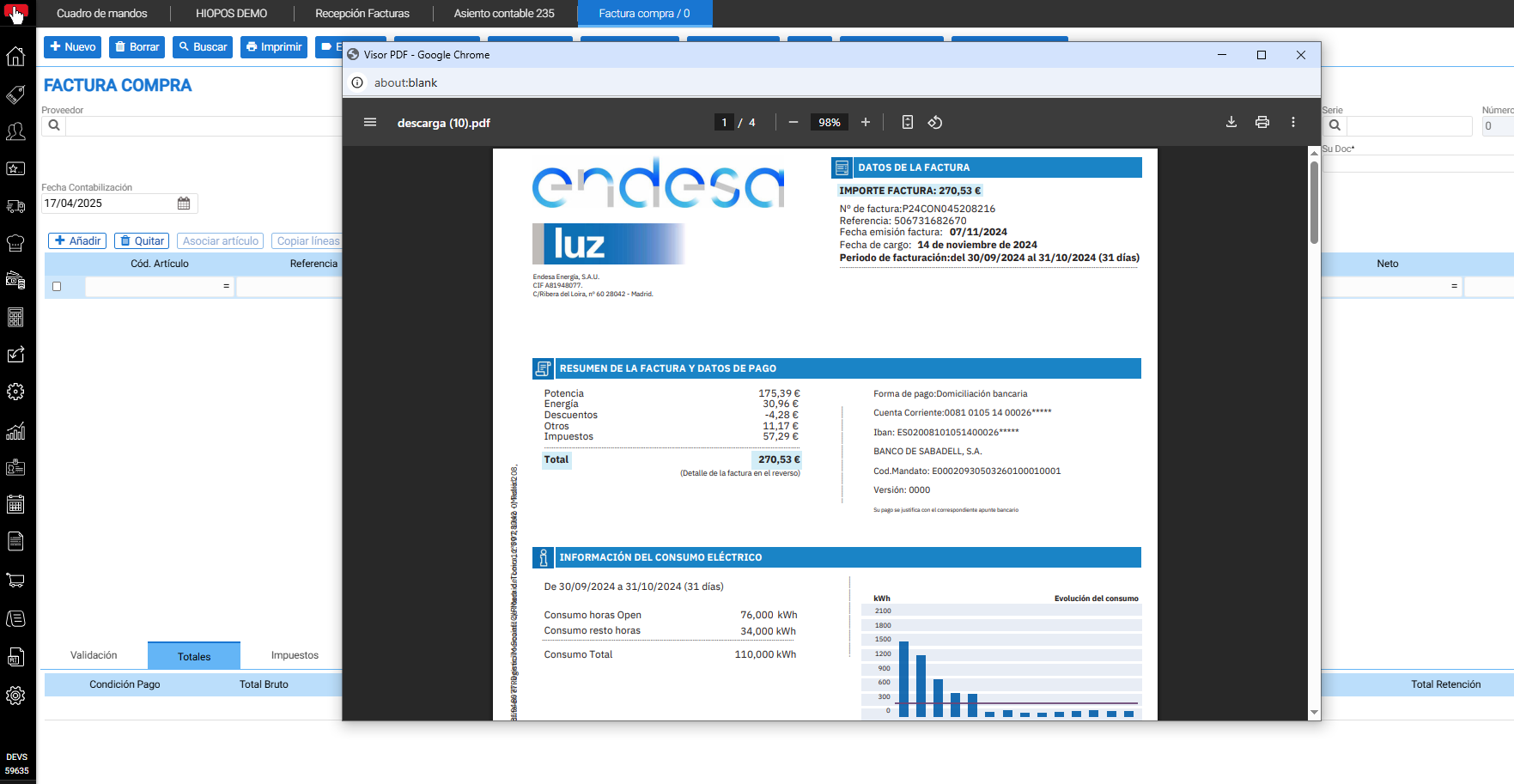
Among the available options of the PDF document, there is an option to DECOUPLE the document and view it in a second view in order to be able to view it on a second screen to improve its viewing.
Invoice pending validation

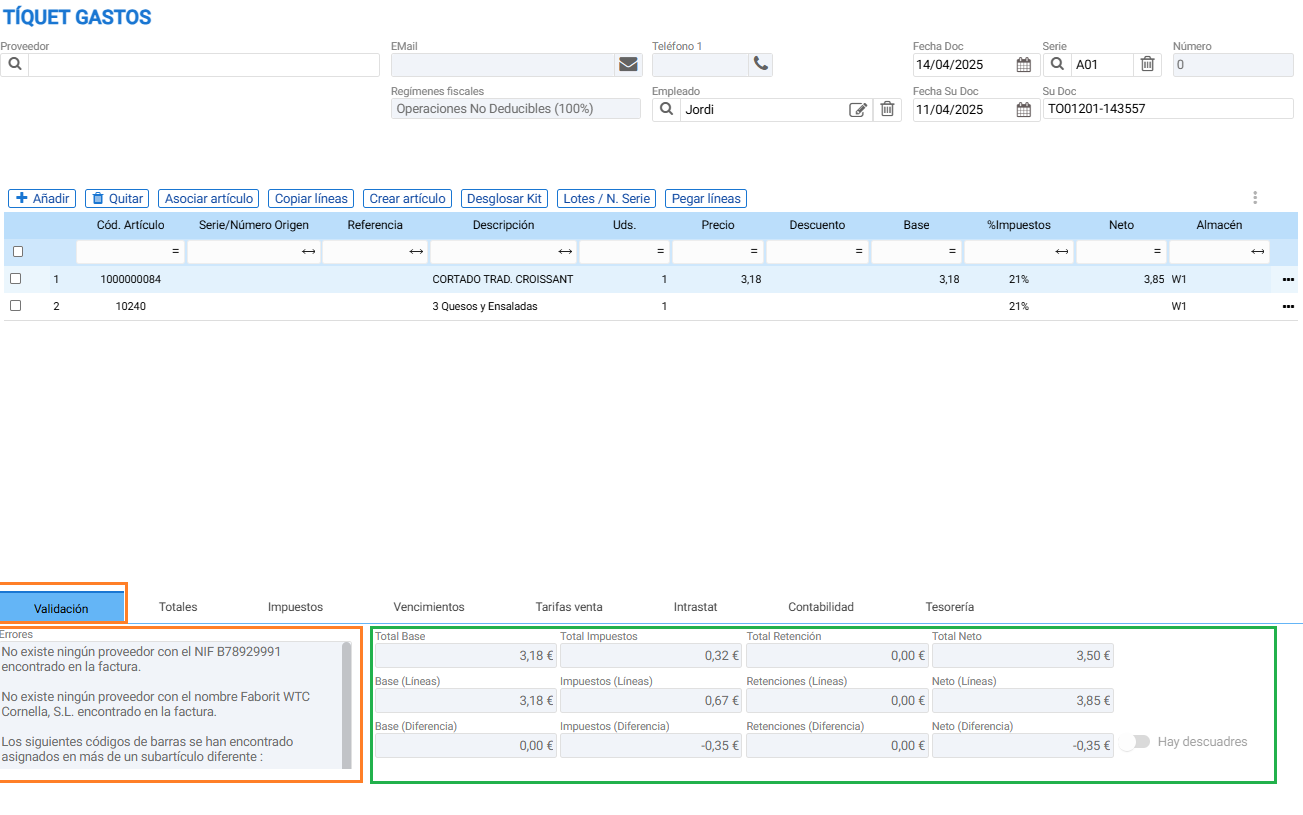
If it shows a yellow result, it means that the document is pending validation. This validation may depend on various reasons which are detailed below.
The reasons why the document is pending validation can be consulted both in the Document Reception list in the (Error) column and in the corresponding document, in the Validation Tab as indicated in the image, where it will detail what happens in each digitization and will also show the document amounts to identify differences between lines and totals.
The supplier does not exist in the database
- If the document provider does not exist in the database, the AI will propose to create it.
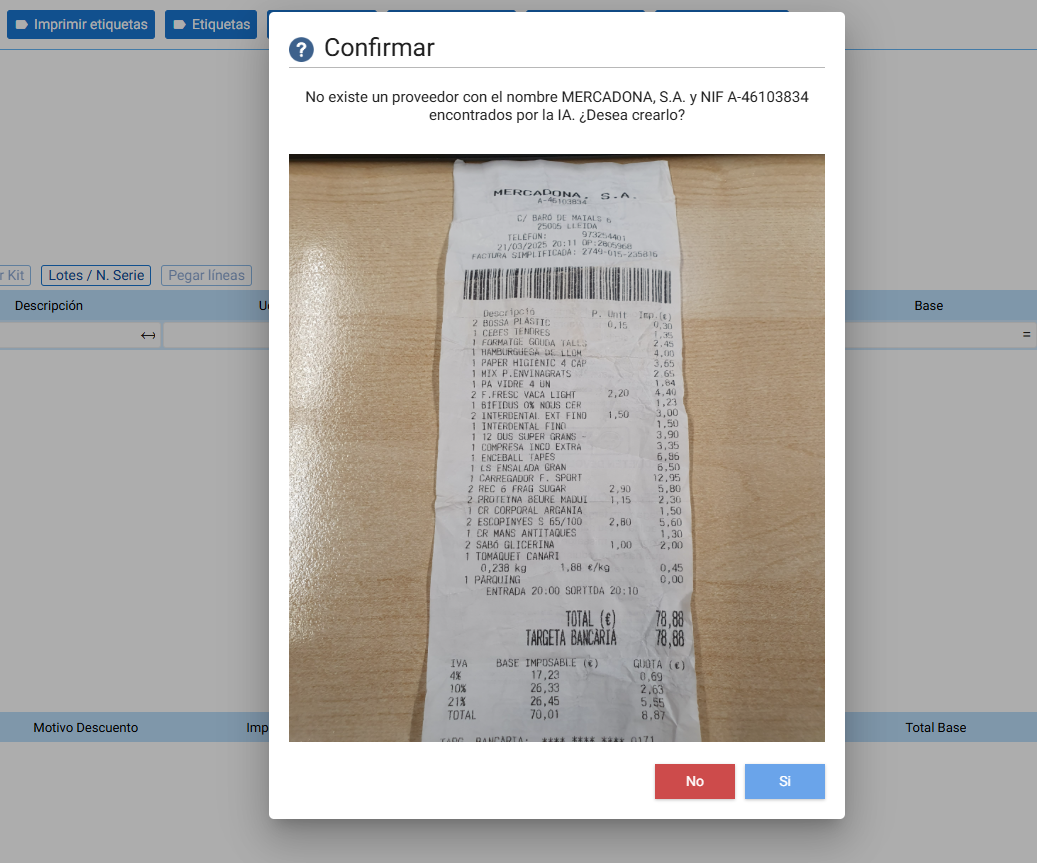
- It will show the following screen indicating that the provider ___ with Tax ID ___ does not exist in the database and will propose its creation.
- Here the user decides whether to create it or not.
- In case of answering Yes, it will create the vendor in the database with the data it can recognize in the scan, and consequently, it will associate it with the document.
- In case of answering No, the document will be digitized, but without a Provider, and the user must manually assign the provider to the document.
The totals or taxes have not been accurately extracted.
Although this is a rather improbable case, it is possible that the totals or taxes were not extracted correctly. The AI may not have accurately extracted the tax bases, quotas, withholdings, or the document's total, and consequently, the totals do not match.
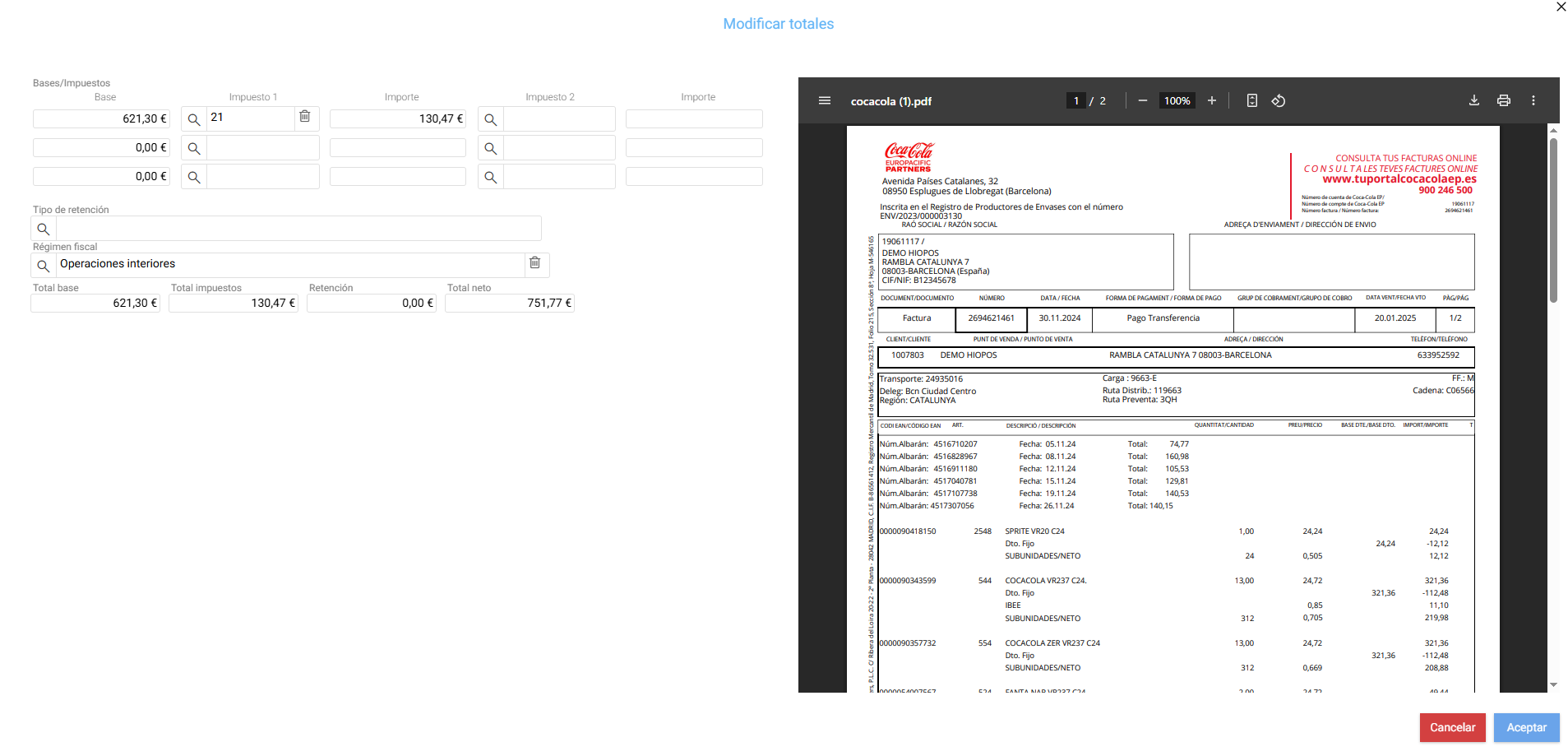
In this case, you must open the document with the lock icon located in the upper right corner and select the option Modify totals. This screen has been enabled to quickly modify the document amounts on this new MODIFY TOTALS screen.
From here, you will be able to verify that the base, tax, and fee have been correctly extracted, according to the amounts visible in the PDF on the right. If they are incorrect, you can modify them from here by editing the fields on the left. This modification will not affect the document lines.
The units or the prices don't match
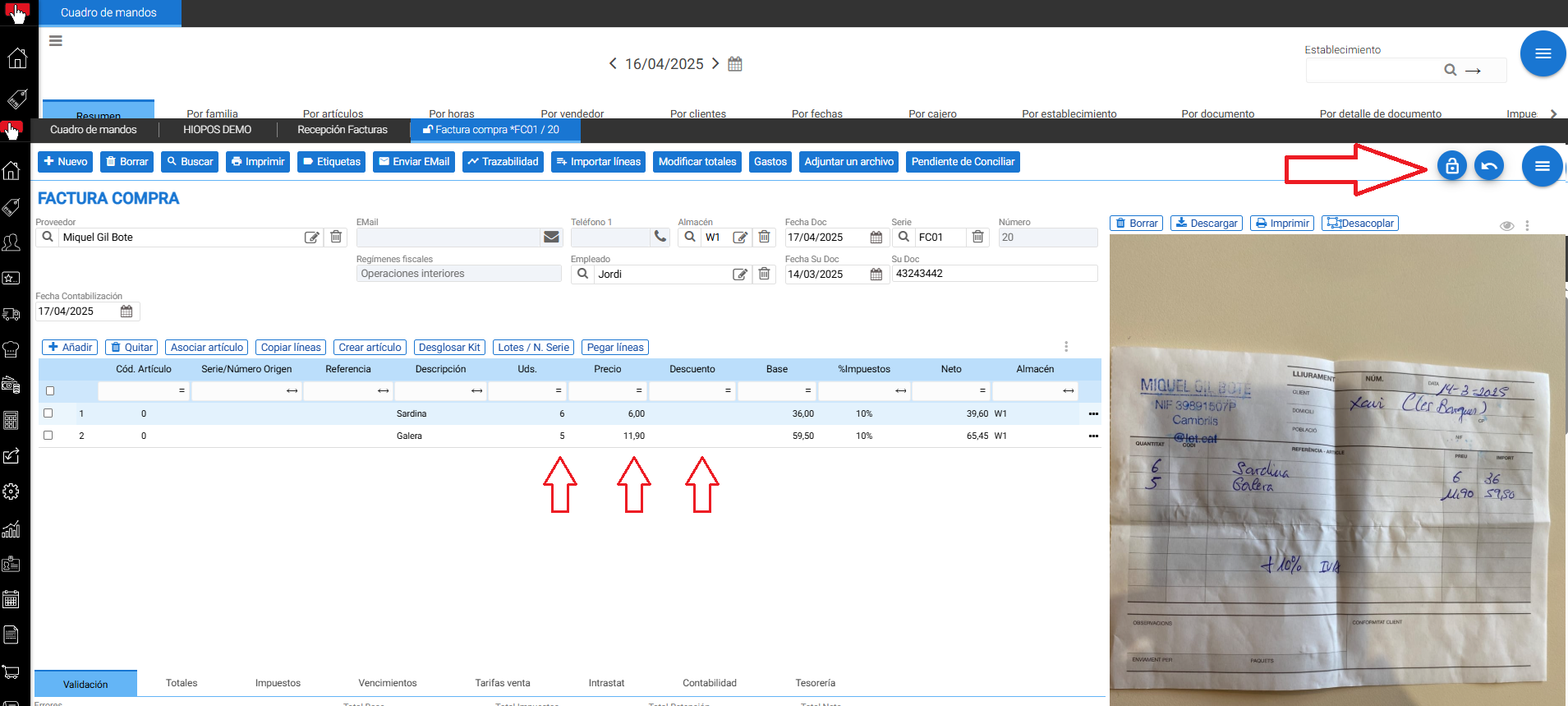
It is possible that after the digitization of the document, the units, prices, or discounts may not match the scanned document.
- If units or prices need to be modified, the document must be opened with the lock, and any information in the document can be manually modified on the lines.
- Once the user has modified the units, prices, or totals of the lines, they must verify that the document totals in the Validation tab match the sum of the lines after modifying them.
- Once the modifications have been made, re-lock the padlock to save the document.
The extracted articles do not exist in the database
It is possible that in Green or Yellow documents there are articles that do not exist in the database.
AI Assistant
Section summary
AI can generate inaccurate information; verify the results.