En esta sección
Warehouse transfers
Premium
From HIOFFICE, transfers between warehouses can be managed. To do this, you must select the Warehouse Transfers section.
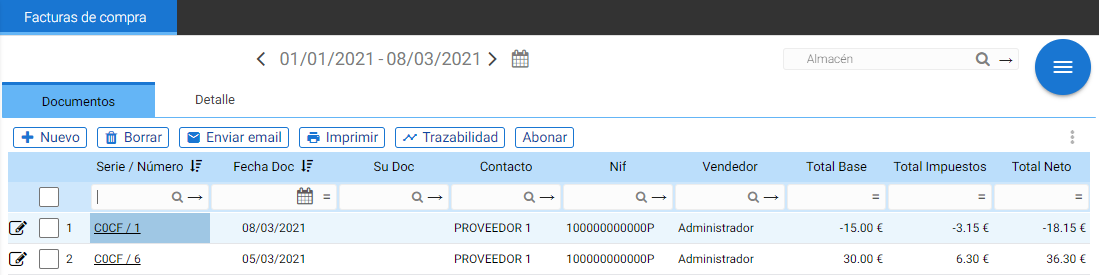
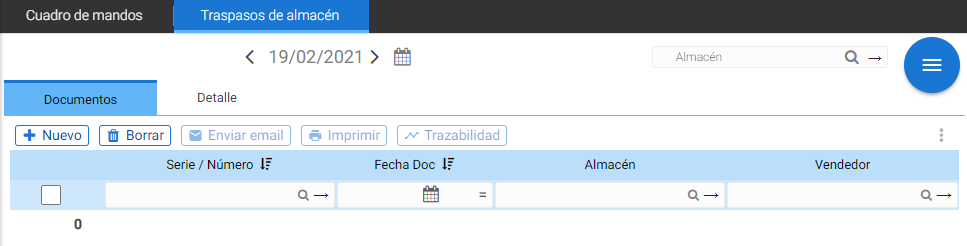
Once selected, a list of completed transfers will open, and a second tab with the details. From this search window, a new transfer can be made. To do this, you must select the button New.
Once selected, the screen with the document will open For salehere you must select the source warehouse and the destination warehouse, this transfer can be assigned to a salesperson if desired, and you can also choose the date on which you want to create this transfer. The series field is modifiable, as it is possible to generate documents with different series.
Once these fields have been defined, the items to be transferred from the warehouse will be added. To do this, select the button [New].Also, the fields of the block can be used to search with F6 or type the article reference.
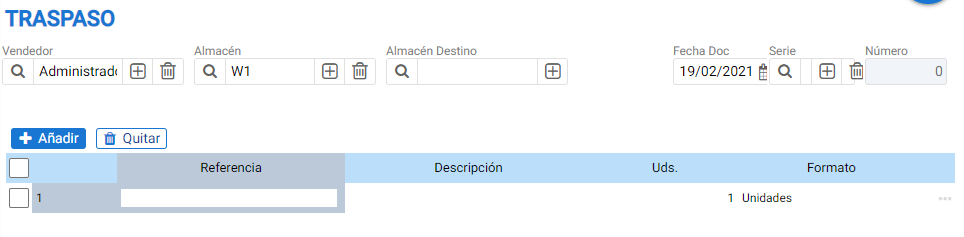
With the items added in the detail, the units to be transferred are indicated.
Once the transfer is complete, it can be printed; it is also possible to print labels for the items associated or send this stock movement by email. Upon completion of the document, the indicated units have been moved from the origin warehouse to the destination warehouse.
Example transfer:
The item "Napkins" has 50 units in stock in warehouse W1. The actual stock for the item can be seen
in the stock statistics.

Using the Transfers option, a movement of 30 units is generated from warehouse W1 to warehouse AC.
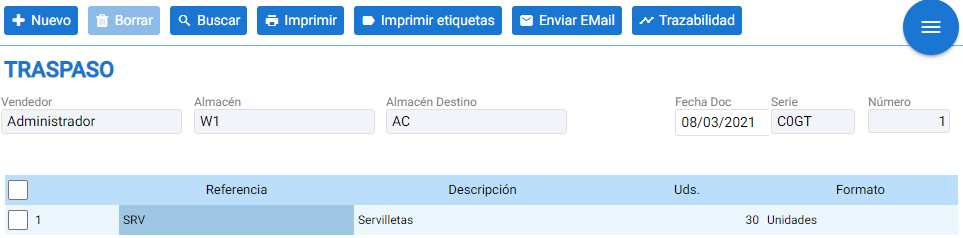
Now you can see the movement in the stock record:

AI Assistant
Section summary
AI can generate inaccurate information; verify the results.