En esta sección
Assign sales to a customer
HioPOS Cloud allows you to work with clients, to whom you can assign sales, create invoices, and then follow up on them.
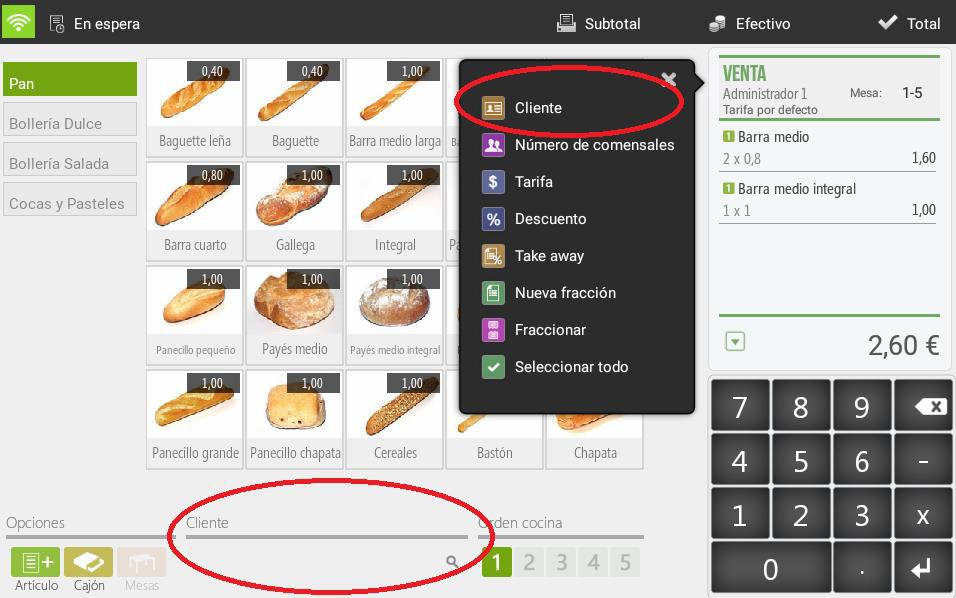
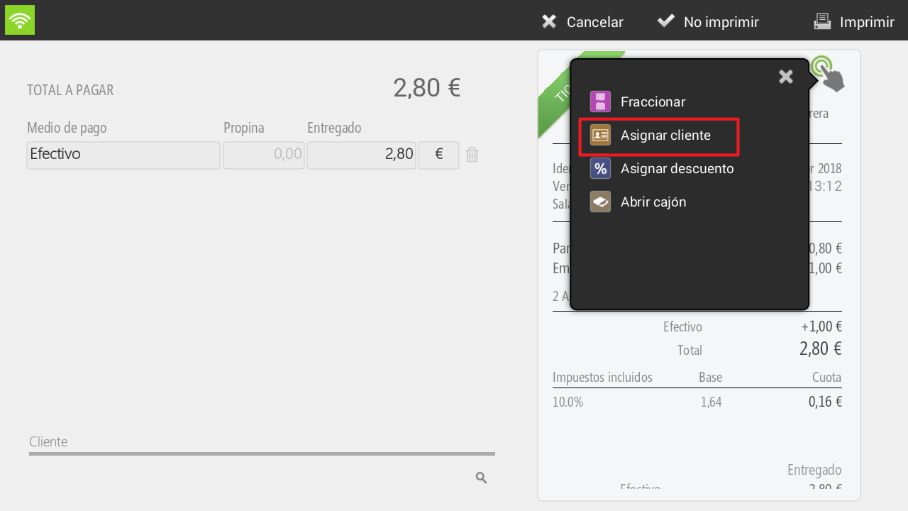
You can assign a customer to a sale from three different places in HioPOS Cloud:
1. Tapping at the bottom of the sales screen (where it says customer).
2. By tapping the top of the ticket displayed on the sales screen.
3. Tapping at the top of the ticket displayed on the total screen.
In all three cases, the customer search screen will be displayed, where we can search by NIF, Name, Phone, or email.
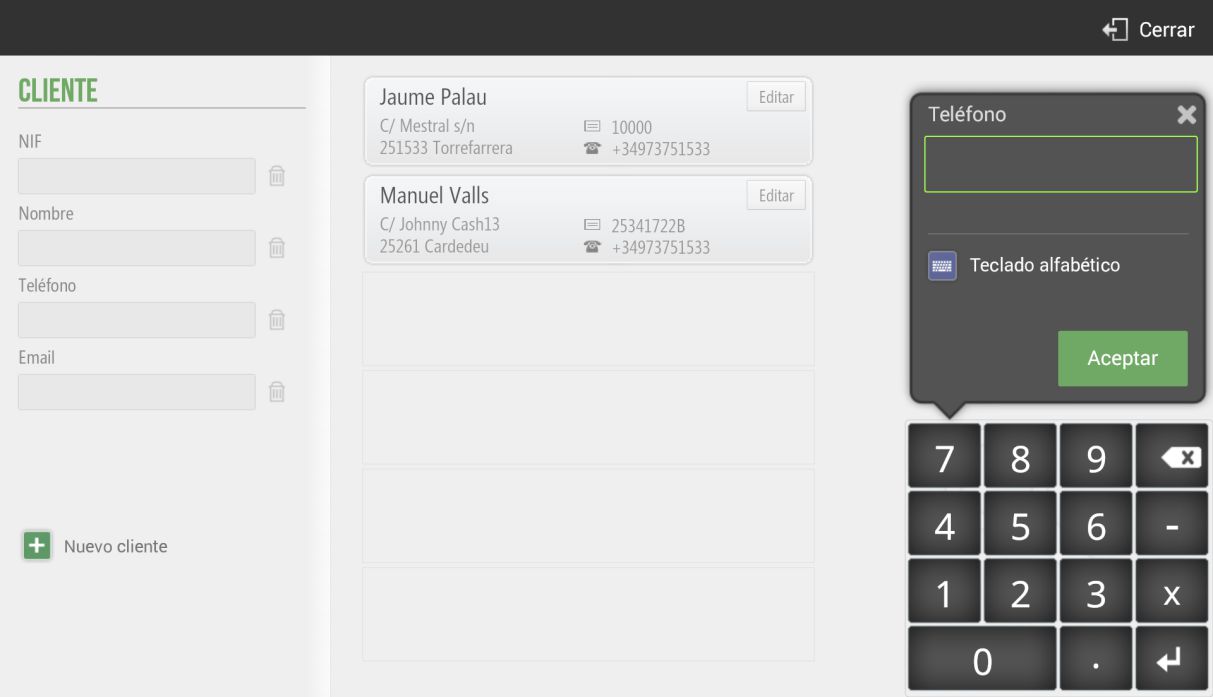
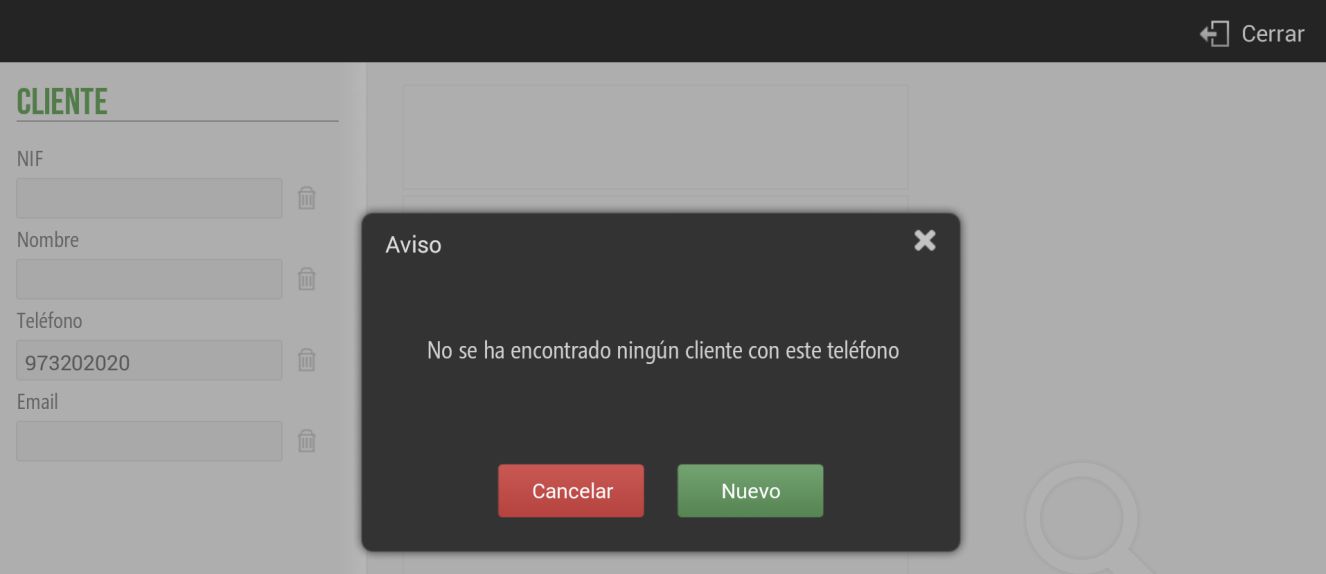
The fastest way is to search for a customer by their phone number. Just enter the phone number using the keypad on the right. If the phone number is not found, the following message will appear, and we can create with the button New a new client record
You can also view, modify, or create new clients in the section Customers inside of Settings

Press the button New customer in the bottom left of the screen to create a new client's record.
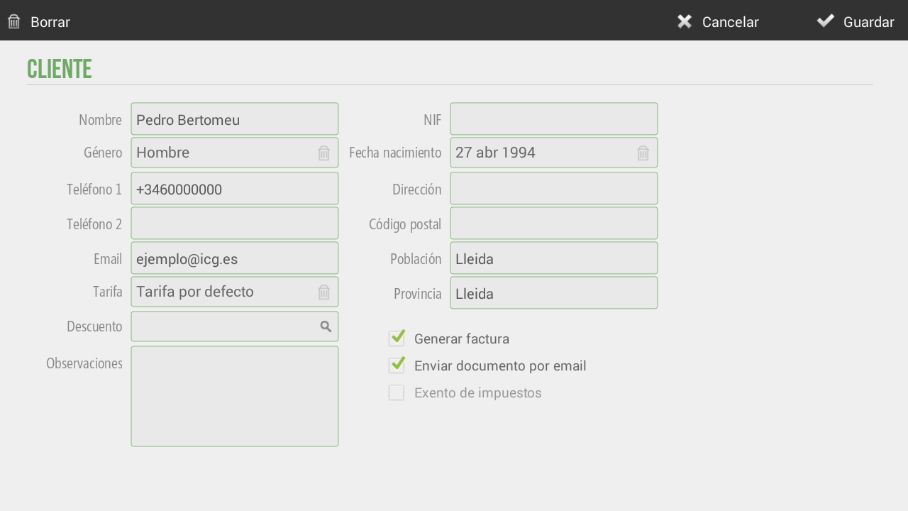
For each client, we can enter all their personal data and select the options Generate invoice and Send document by email.
In addition to these options, there is also the possibility to select a specific default rate for this client, as well as a specific discount (selectable from the existing Discount Reasons). This way, when we make a sale and assign it to this client, the rate and discount will be applied directly.
If we want to assign more than one email address, all of them must be entered in the Email field, separated by a semicolon (;).
Generate invoices
On the same customer details modification screen, we can enable the 'Generate Invoice' option, so every time we make a sale to this customer, an invoice will be generated instead of a receipt.
Send documents by email
HioPOS Cloud can send invoices and tickets to the customer by email. For this, we need to have a valid email address assigned to the customer and check the "Send document by email" box.
If the Send document by email option is activated, every time we make a sale that is assigned to the customer, this will be sent from no-reply@hiopos.com to the client's email.
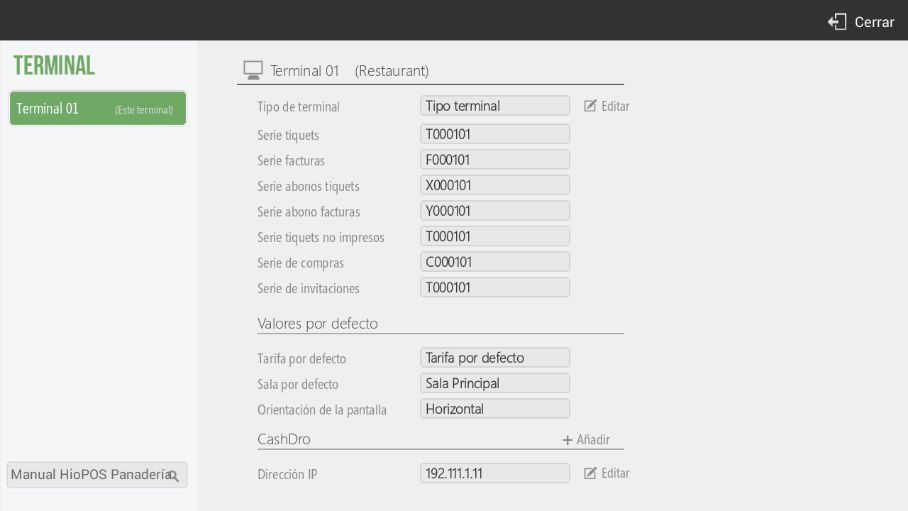
NoteHioPOS Cloud uses a different numbering for ticket-type documents, invoice-type documents, and credit notes for tickets and invoices. You can set the series for each document type per terminal in the Terminal section of the Configuration.
As you can see, if you had a CashDro configured, it would appear in the bottom margin of this screen:
AI Assistant
Section summary
AI can generate inaccurate information; verify the results.