Combo-type Items
Creating combos allows grouping items and being able to make, for example, a breakfast combo.
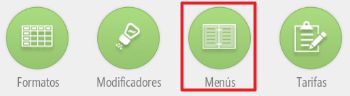
To access combo creation, go to the section Settings and select the option MenusHere you can create new combos or edit the existing ones.
Creation and maintenance of menus
This option is very interesting for those bakeries that offer a combo or menu, whether for breakfast, a snack, etc.
The main screen of the menu module is as follows:
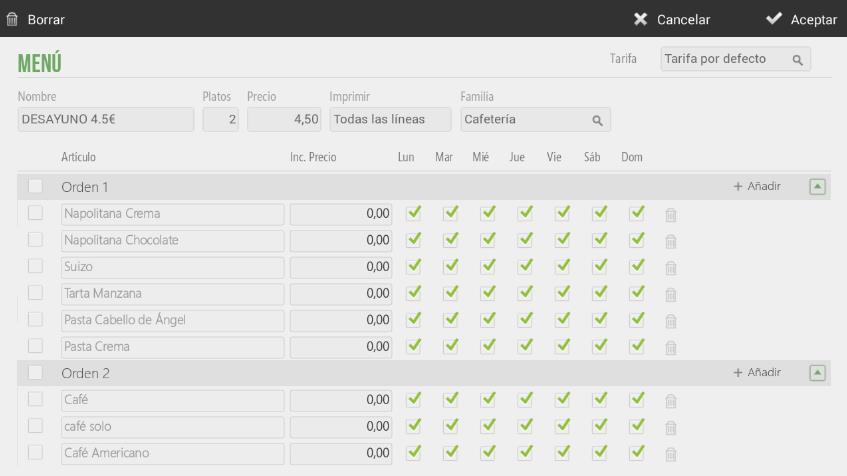
From the general menu options, you can modify the name, the number of dishes to be served, the price of the entire menu, and the category where the item will be placed.

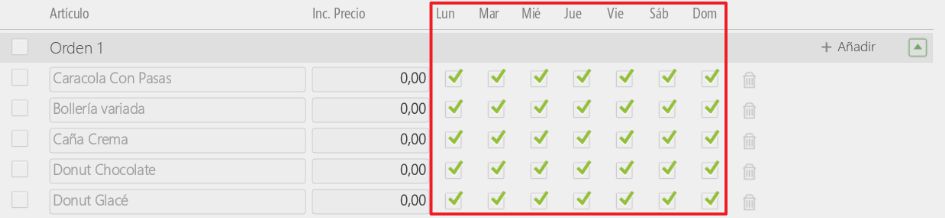
Each dish can contain as many items as desired, as well as selecting which days each item will be available.
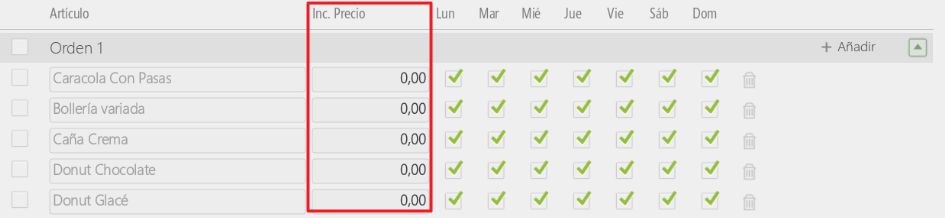
Additionally, you can add a supplement or price increase per item, which would be added to the total menu price.
Meal sales
First, a menu must be created, as specified in the previous point, and this menu must be assigned to a family.
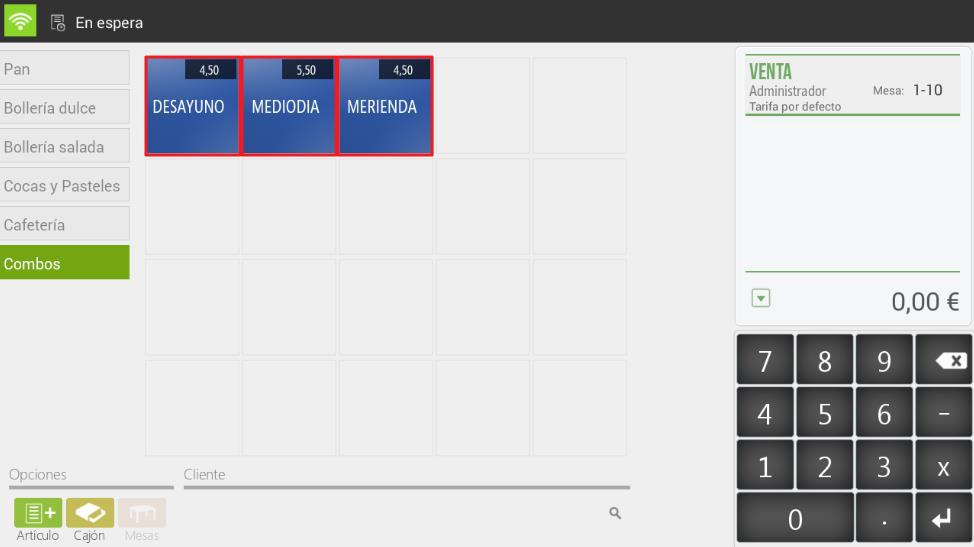
On the sales screen, select the family that contains the menu, and then select the menu from the list of items. The dishes that make up the menu will appear, as well as the items available for each dish (items can be configured by days of the week).
Select the first course item, repeat the action for each course until you have selected them all. You don't need to press next, the next button is only to complete the process.
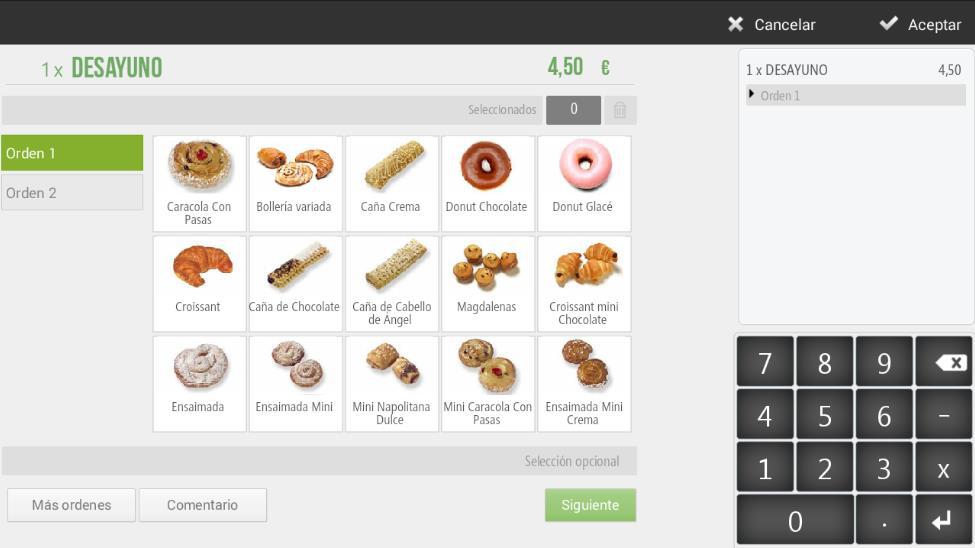
If you wish to finish without having selected all the dishes you have configured, press Accept.
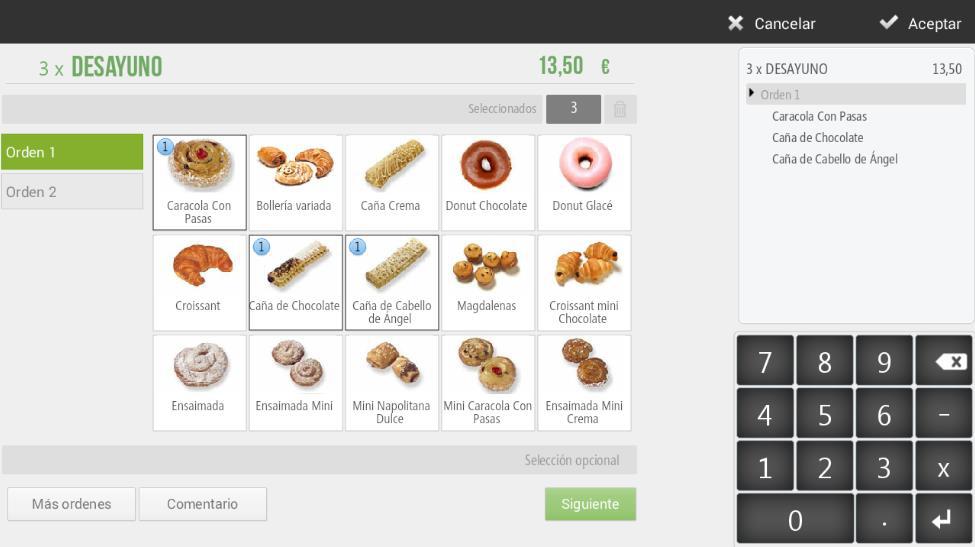
HioPOS Cloud allows you to sell multiple menus simultaneously. To do this, select the number of menus to sell on the numeric keypad of the sales screen and then select the menu item. Example: if you select 3 menus, you must enter 3 starters, 3 main courses, etc.
AI Assistant
Section summary
AI can generate inaccurate information; verify the results.