En esta sección
Devices
HioPOS Cloud can work with different external hardware devices. These are: Ticket printer, Cash drawer, Scanner, Display, Label printer, Scale and Card reader. They can be configured from the option Devices on the menu of Configuration.

Below are the main technical specifications for the device configuration.
Once you have configured each device, press Test to test it and verify that it works correctly.
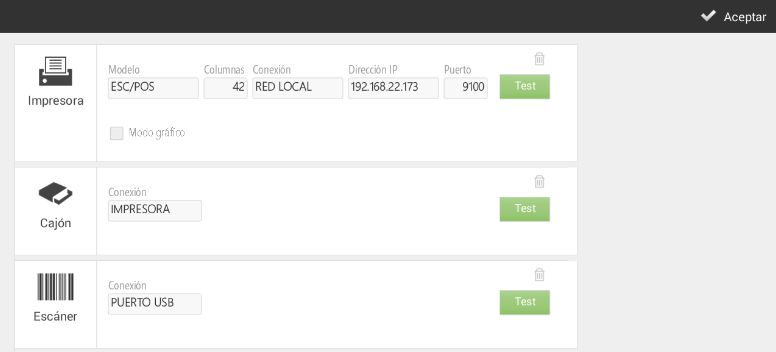
Depending on the device you are configuring, and the features of your terminal, you will be able to select from different connections (Local Network, Bluetooth, USB Port, Printer Port, Keyboard Input or Audio Port).
If you wish to modify device settings or add a new device, you can do so in the section Devices of the screen Configuration.
Printer
The printer we set up here will be the default printer that the terminal will use for printing tickets.
HioPOS Cloud works correctly with most ESC/POS compatible receipt printers. You can also configure the printer's number of columns. The most common is 42.
Next, we select the type of connection. We can work on a Local Network, with Bluetooth, and with a USB Port.
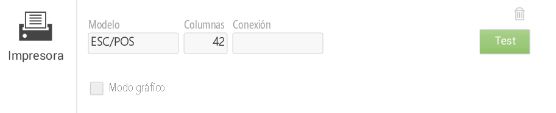
If the printer is Ethernet or Wifi, select Local Network and enter its IP address. By default, the port should be 9100.
If the printer is Wi-Fi, we will select Local Network under Connection. In this case, keep in mind that both the printer and the point of sale terminal must be connected to the same Wi-Fi network. We will enter the IP address and port of the printer. We press Test to verify its operation.

Selecting the Connection Regarding Bluetooth, we must keep in mind that the printer needs to be connected from the start with the Android operating system. To do this, go to the Android settings section and in the Bluetooth subsection, select the printer. Once correctly connected, we will return to HioPOS Cloud and select the Device that will already be automatically suggested to us. We click Test to verify its operation

If we select the USB Port connection type, we need to have the printer connected to the USB port of the point-of-sale terminal or tablet. In the box Device We select the port that HioPOS Cloud will already suggest by default. We press Test to verify its operation. Also, we can configure the printer via Serial Port. HioPOS Cloud has a Serial Port.
Cash drawer
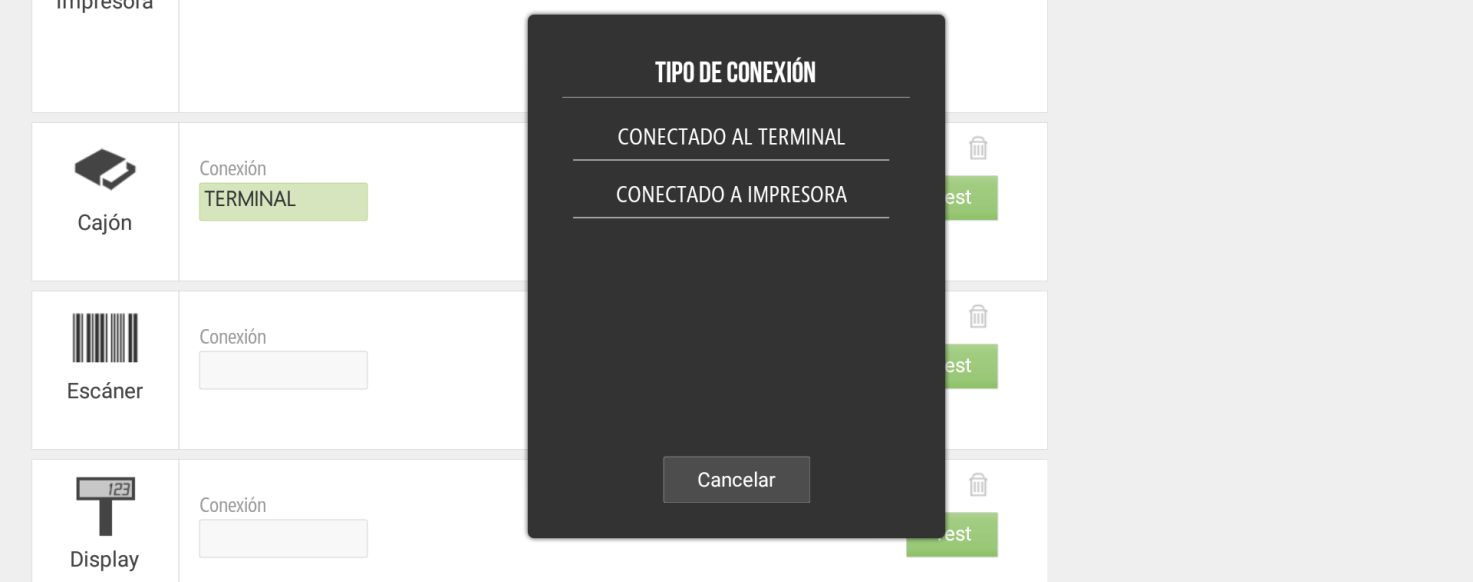
The cash drawer configuration can be performed by connecting it to the printer or the terminal.
Scanner
The scanner, or barcode reader, can be used in three different ways: via Bluetooth, via USB Port, or through Keyboard Input.
Selecting the Connection Regarding Bluetooth, we must keep in mind that the scanner needs to be connected from the start with the Android operating system. To do this, go to the Android settings section and in the Bluetooth sub-section, select the scanner. Once correctly connected, we will return to HioPOS Cloud and select the Device that will already be automatically suggested to us. We click Test to verify its operation.

If we select the USB Port connection type, we need to have the scanner connected to the USB port of the point-of-sale terminal. In the field Device We select the port that HioPOS Cloud will already suggest by default. We click. Test to check its operation.

Keyboard entry does not require any device connected to the point of sale. Simply type the product's barcode on the numeric keypad of the sales screen, then press Enter. HioPOS Cloud will add the item to the sales receipt.
It is possible that when connecting the barcode reader to the terminal, the Android keyboard is disabled. To address this, you will need to go to the Settings properly of the terminal Android, Language and text introduction, in the section of Keyboard y introduction methods: Current keyboard, you will have to activate the Hardware option: show input methods.
Display
We will select the client viewer model, as well as the type of configuration it has. The connection is via serial port

Magnetic stripe reader
On a tablet, the magnetic stripe reader works by connecting to the audio port. Connect the device to the audio input and select the Connection. Pulse Test to check its operation

Label printer
The label printer we set up here is going to be the printer the terminal will use for label printing.
HioPOS Cloud works correctly with most label printers compatible with EPL or ZPL. The connection can be made via local network, Bluetooth, USB port, or Serial port.

Scale
The scale we set up here will be the scale the terminal uses to weigh those items configured by weight.
HioPOS Cloud works correctly with most EXA model scales and with other Generic models. The connection is made via Serial Port.

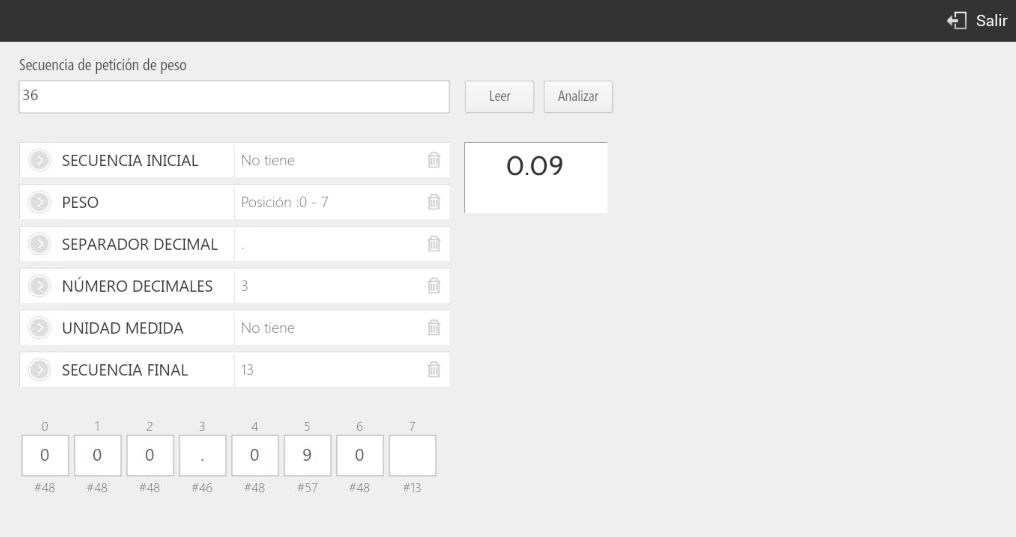
The moment we press Test The scale's configuration window appears. We will need to configure the Weight Request Sequence. This value usually appears on the front of the scale, followed by the acronym (S.P.). In our case, 36.
We can configure the position of the initial sequence, the weight positions, the type of decimal separator, the number of decimal places we want to use, the unit of measurement, and the position of the final sequence.
To check that the configuration has been done correctly, we press 'read' and it should display on screen the same weight that appears on the scale itself.
One of the possible settings is the number of decimal places. As shown in the image below, we can select the number of decimal places that we read on the scale.
AI Assistant
Section summary
AI can generate inaccurate information; verify the results.