En esta sección
Receive goods with lot numbers
How to enter merchandise with lot numbers
In our example, we are going to manufacture packaged potato omelets that will be sold individually. The manufacturing of this Item contains the following components:
- Onion
- Potatoes
- Country-style eggs
- Fine salt
- Olive oil
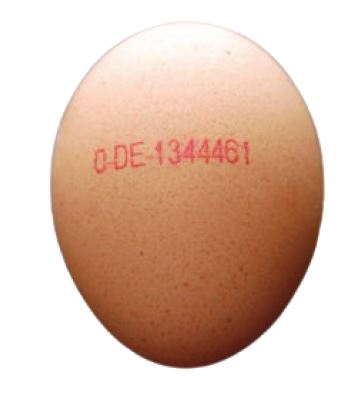
I will have to buy these components to have stock of them, so we will focus on one of them, specifically free-range eggs. Eggs are a product for which the batch number is indicated upon purchase, for example:
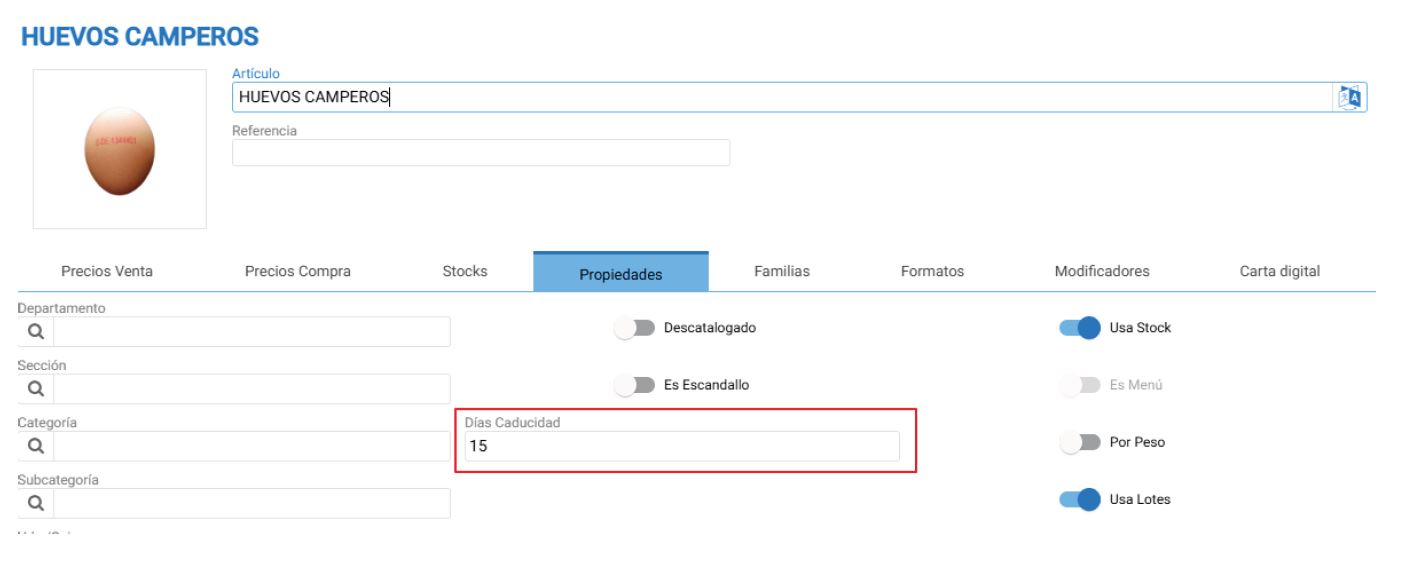
Additionally, we know they have a 15-day shelf life, so we can set up a field to generate the expiration date for us every time we purchase that item.
Finally, all we need to do is purchase said item, indicating the Lot, and we will then have stock of said item.
To add the lot to the purchase, we have 2 options: either from a pencil icon activated on the left side of the line, or an operation in the lines named "Lot/ S. No."
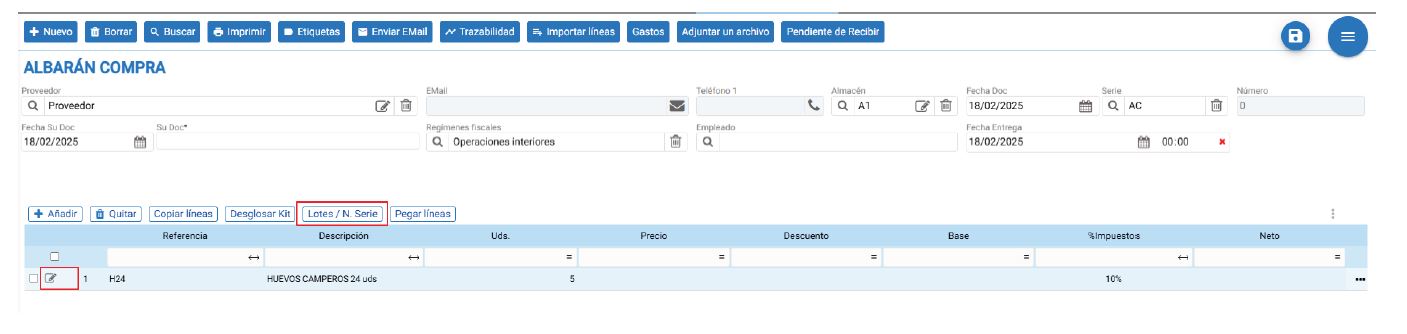
If we do so using the pencil, the following screen will appear:

On this screen, we can enter the corresponding batches. In our example, we are buying 5 egg cartons of 24 eggs each. It is very likely that they are not from the same batch. There is no problem, as we can create a batch for the units we purchase.
In this case, as we bought 5 units, we will be able to assign 5 lots. Additionally, if we notice, it suggests generating a sequential number. As we mentioned previously, we have the option to generate our own lot instead of keeping the supplier's. In this case, we are not interested.
We look at the packages and see that we have the lots:
- 1 egg carton with lot 001
- 2 egg cartons with lot 002
- 2 egg cartons with lot 003
Since we are going to enter the supplier's batch, in this case the eggs', just by typing the batch and pressing ENTER on the keyboard, we would have it:

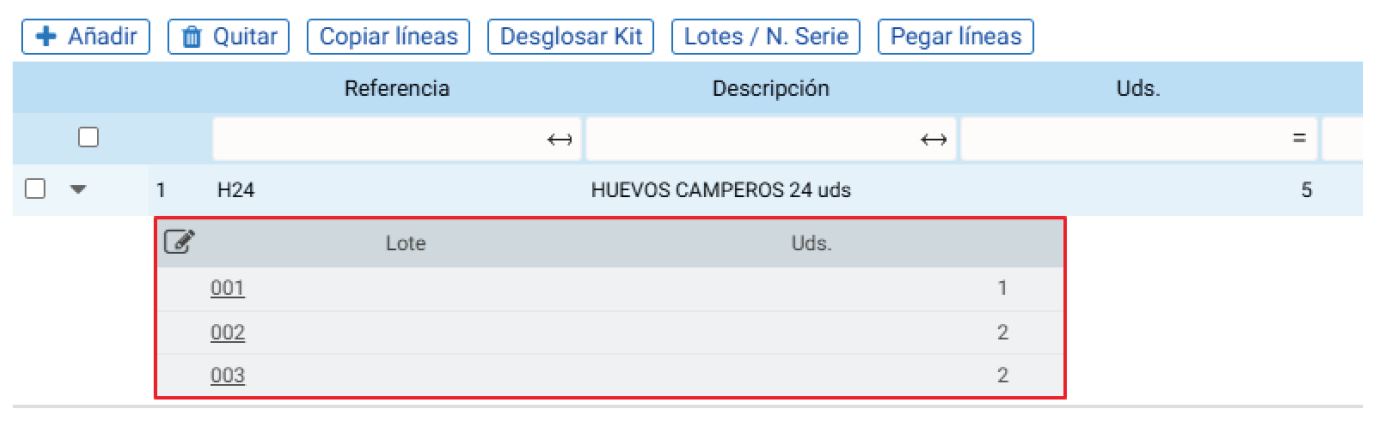
Upon accepting, we would see in the document how those lots appear to us in the Article line:
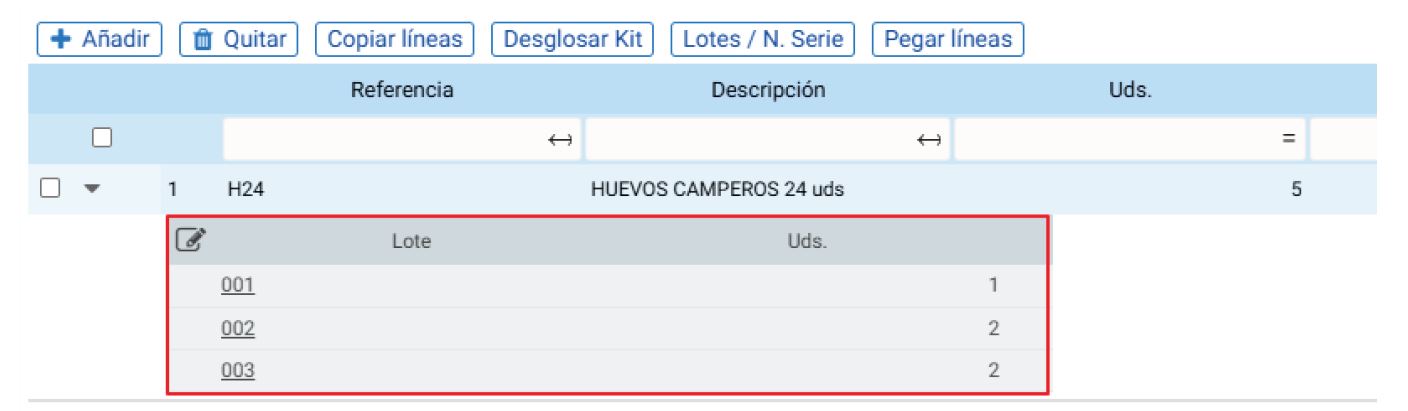
If we close the document, we would already have 5 egg cartons in STOCK with their identified lot.
If we generate the batches through the “Batches / Serial No.” option, it opens a somewhat different screen, but it would be to generate exactly the same batches.
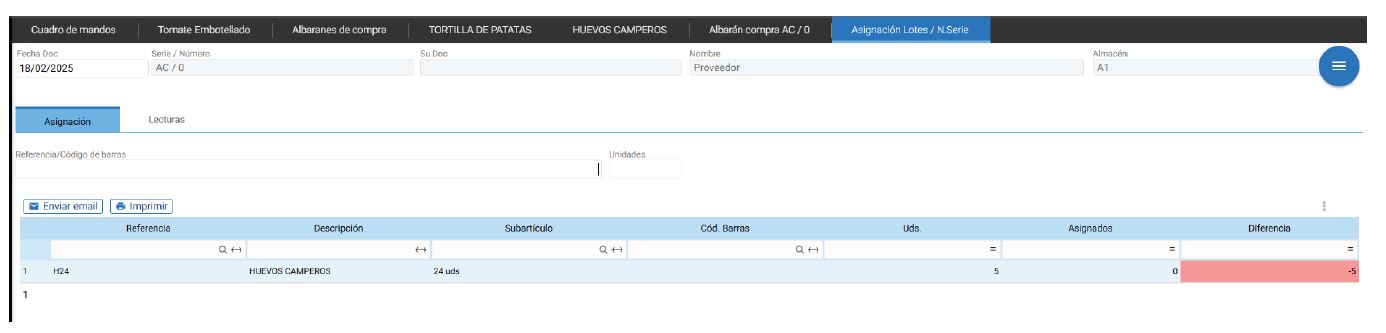
This is a quick Lot assignment screen as it is normally used with a keyboard emulation barcode scanner for lot generation. To use this screen, our item must have a Reference or Barcode.
We will use Reference when our article only has one format.
We use Barcodes when our item has more than one format, for example, we buy eggs in packs of 24 while we view their stock in units because that is our reference format.
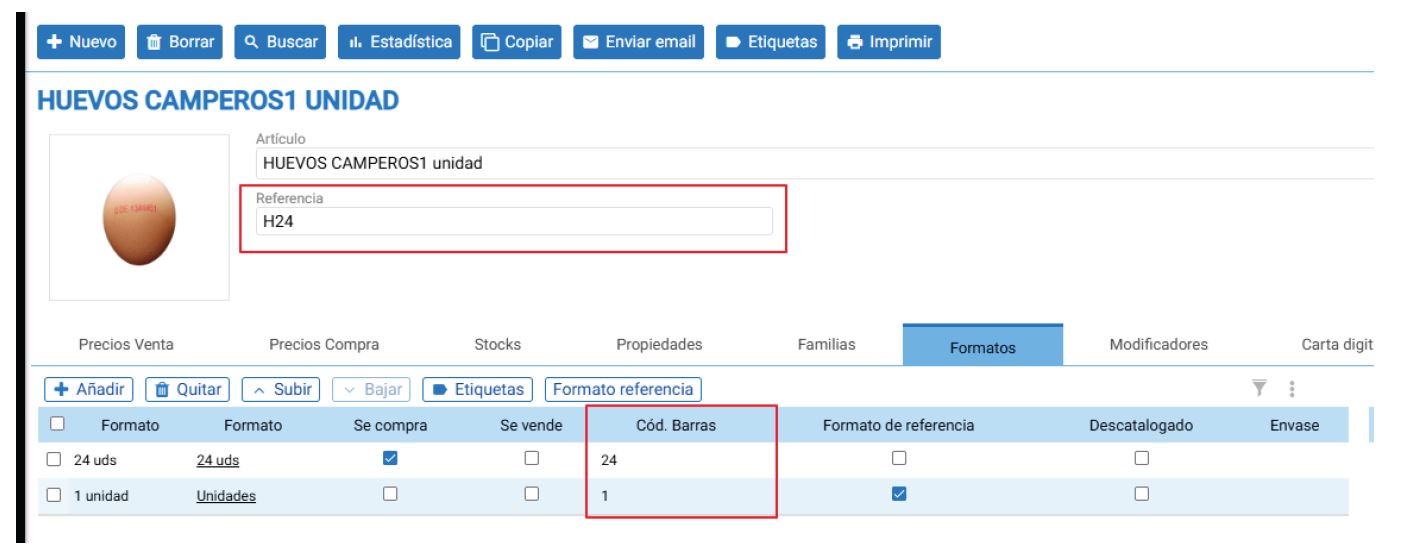
If we use a reader and read the (H24) reference, which is available in multiple formats, the following image will pop up for us to choose which format:

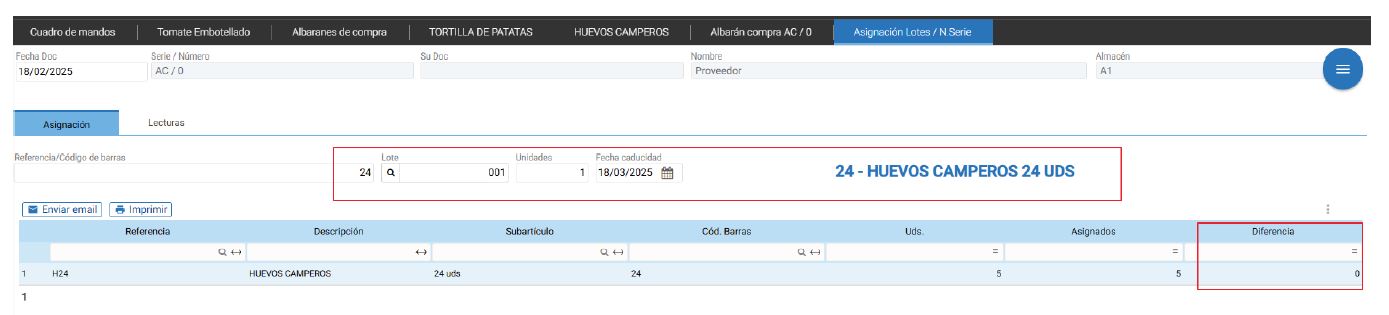
But if we read the barcode (24) directly, it will know that we are entering batches of the 24-unit format.
Once all batches have been read, we will see that there are no longer any discrepancies, so we can accept, and the document with the pertinent batches will appear. We must remember to indicate the barcode, the batch, and the units for all batches.
Once we close the document, we will see how our Item has the correct stock for the batches we have entered:
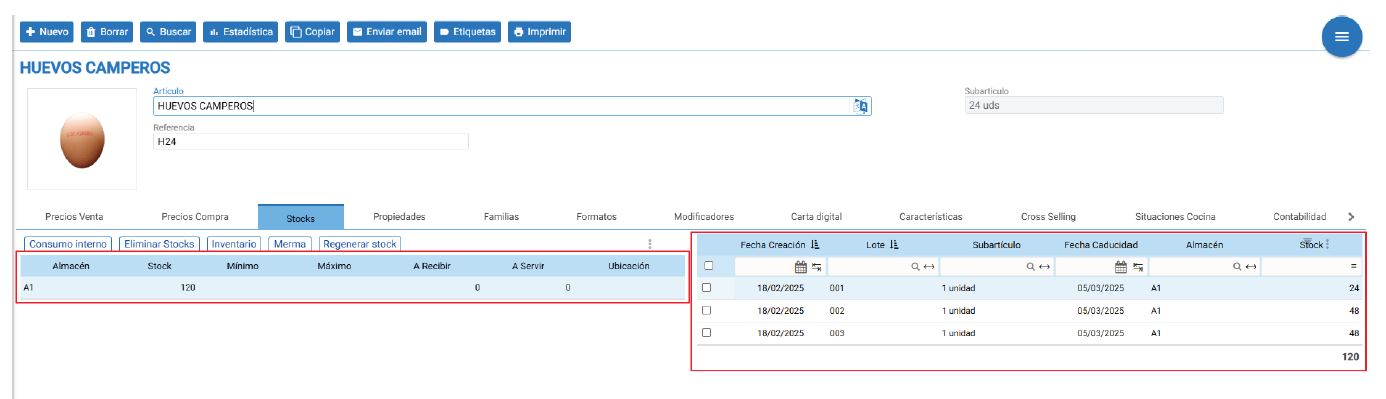
As we can observe, I have indeed bought 5 packs of 24 eggs, but my stock is in units, meaning there are exactly 120 eggs in total in Warehouse A1, distributed as follows:
- 1 egg carton with lot 001 = 24 eggs
- 2 egg cartons with lot 002 = 48 eggs
- 2 egg cartons with lot 003 = 48 eggs
Additionally, since we had the product's shelf life in days, the Lot's expiration date has already been automatically calculated.
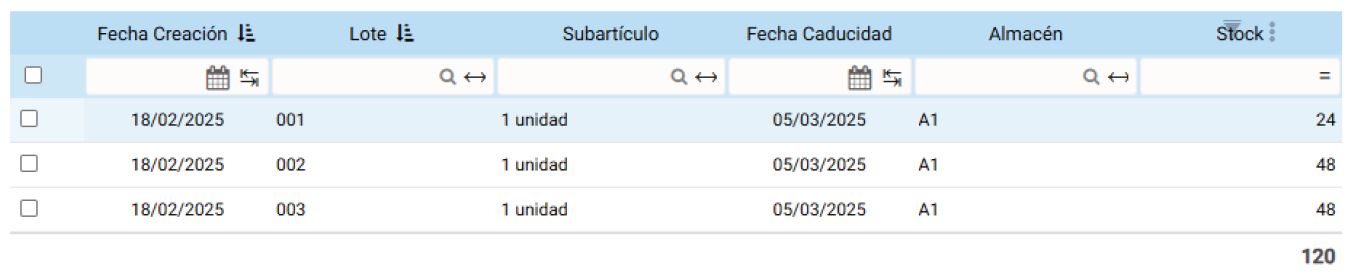
18/02/2025 + 15 Days = 05/03/2025
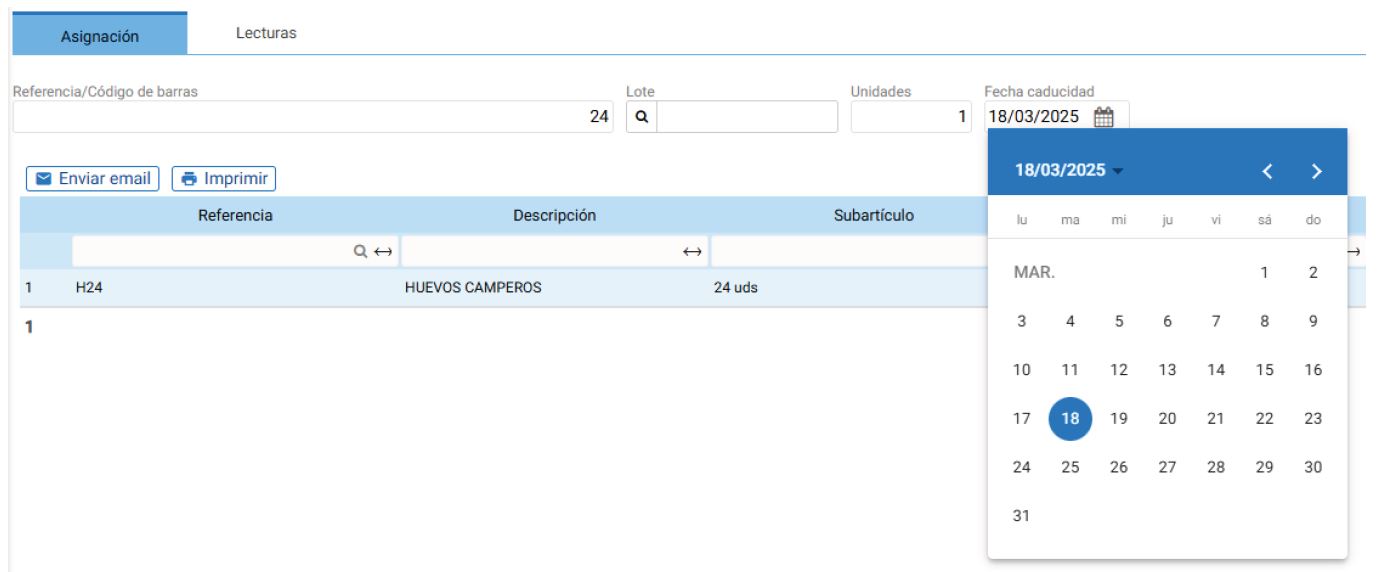
On both the screen generated by the stylus and the screen generated by the Lot / Serial No. button, we can adjust the lot's expiration date; we don't necessarily have to adjust the number of expiration days. We show you where:
Clicking on the date will display a calendar to adjust the expiration date.
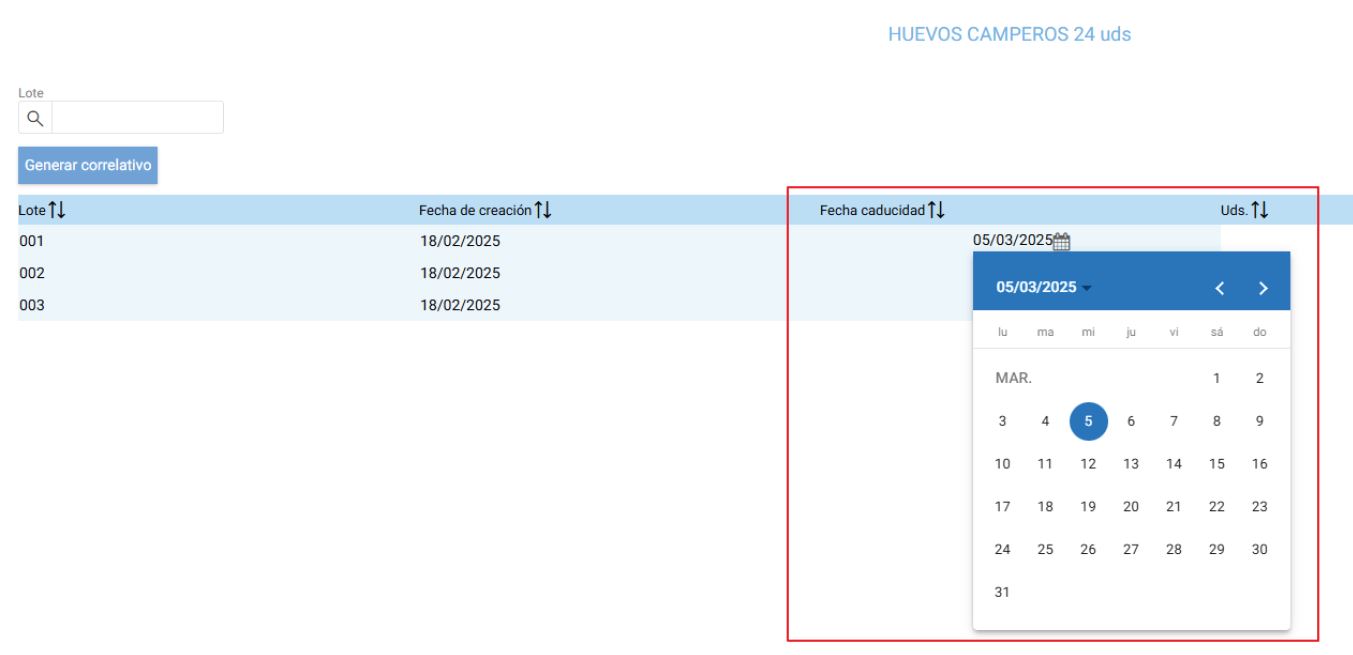
We have the same option on the other screen too:
Additionally, if you already have the specified lot and want to add stock for a particular lot, there's no need to manually enter the lot again. If you click on the magnifying glass icon in the "Lot" attribute, the current lots for that Item will be displayed.
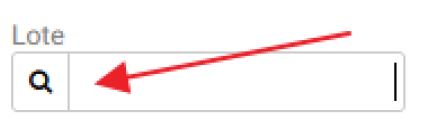
Making it so that if we buy from the same lot in a subsequent purchase, we just have to select it.

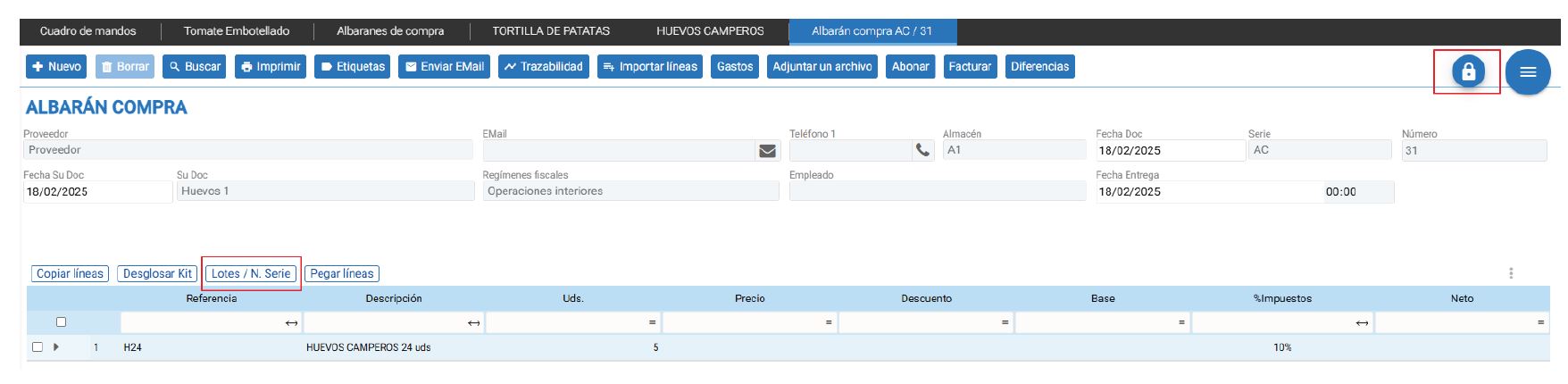
Lastly, it's important to know that even if the purchase document is closed, we still provide the option to adjust the Lots, meaning you don't necessarily have to wait for the lots to arrive to correctly enter the Stock. For this case, the only option we have is to use the Lot / Serial No. button:
AI Assistant
Section summary
AI can generate inaccurate information; verify the results.