En esta sección
Document Design
Premium*
Hioffice offers different document designs by default.
Upon accessing the Document Design settings, the first thing you see is the filter with the existing designs. From here, you can generate a new design or open an existing one, and additionally, designs can be exported and imported in JSON format.
NOTE: The existing documents must be copied in order to be modified.
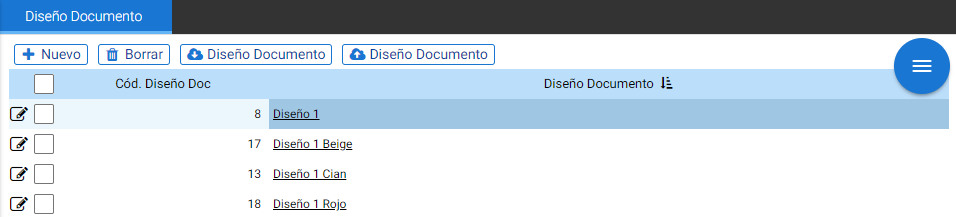
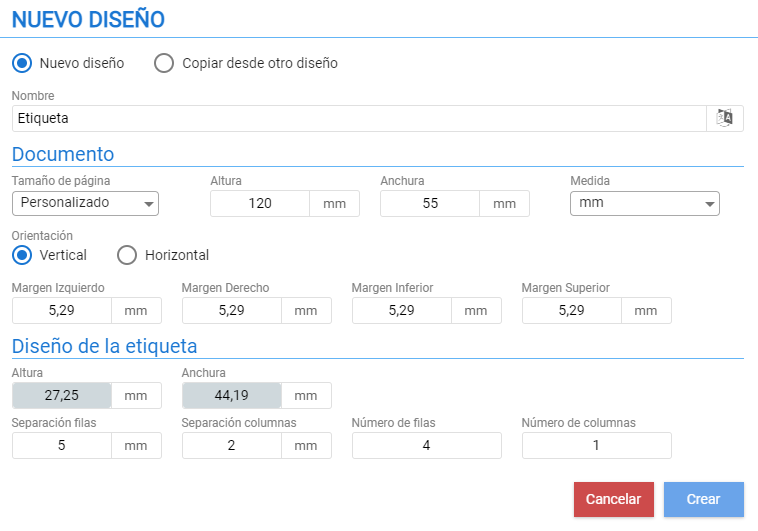
To create a new design, first click the [+ New] button; this opens a window of Document Editor.
Initially, you must define the name, the document size, and what types of documents it will apply to (it can also be copied from an existing one).
Below is an example image:
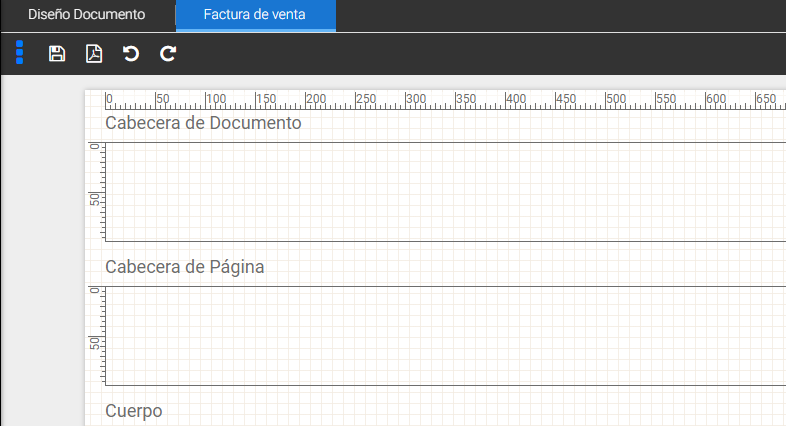
After clicking [Create], the design tool opens, where the document's representation is shown in a grid divided based on the blocks that make up the document: headers, body, and footers. The top menu contains the undo and redo buttons, the Preview and Save buttons, as well as a three-dot icon that hides and displays the settings menu.
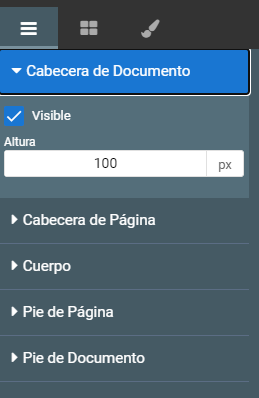
When expanding the configuration menu, three tabs are distinguished: Section, Component, and Properties.
In a Section, the visibility and height of the blocks that divide the document are defined.
From Properties, the data entered in the document size menu and label numbers per row / column are displayed. This tab will change if a field is selected.
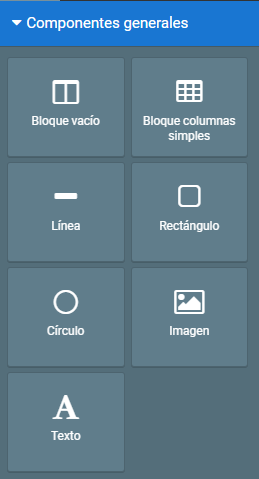
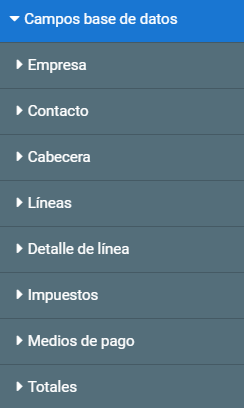
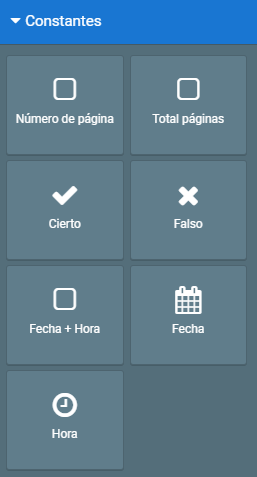
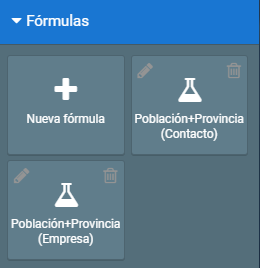
In Component there are four blocks of objects:
- General components: for aesthetic elements.
- Database fields: Contains the database attributes, the fields are sorted alphabetically
- Constants: fields that vary according to a fixed constant.
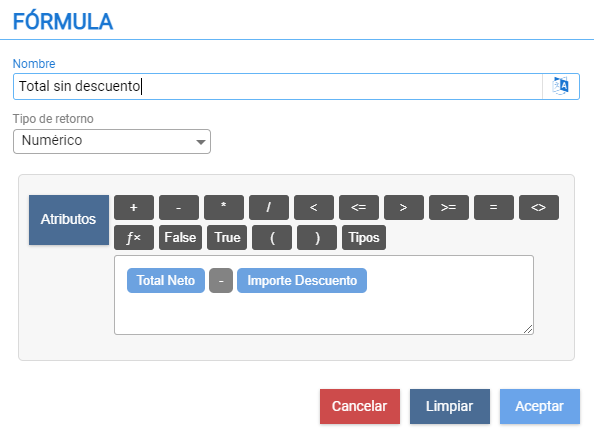
- Formulas: they can be generated from the attributes in the Database Fields block
Example formula field:
When configuring a discount applicable to the net total, a field is needed to display the document's total amount without this discount.
From Component, access Formulas and add a new formula, then drag the created field onto the desired block.
AI Assistant
Section summary
AI can generate inaccurate information; verify the results.