En esta sección
Batch article creation
How to create a batch-type article?
We have two options for creating batch-type items. The first can be found when creating a new item and selecting 'batch type'.
The other option would be through a standard item; we can enable a property to convert that standard item into an item that uses batch numbers. When using this option, a situation may arise that we will explain later in a "Did you know?".
The creation of these does not condition how we visualize the product sheet for both items, as they are exactly the same and behave identically for computational purposes.
We inform you that creating batch items from Hiopos is not possible; it must be done in Hioffice, our ERP.
Item Lot Type
When creating articles, we can choose the batch type. This way, Hioffice will understand that we work with batches for that Article.
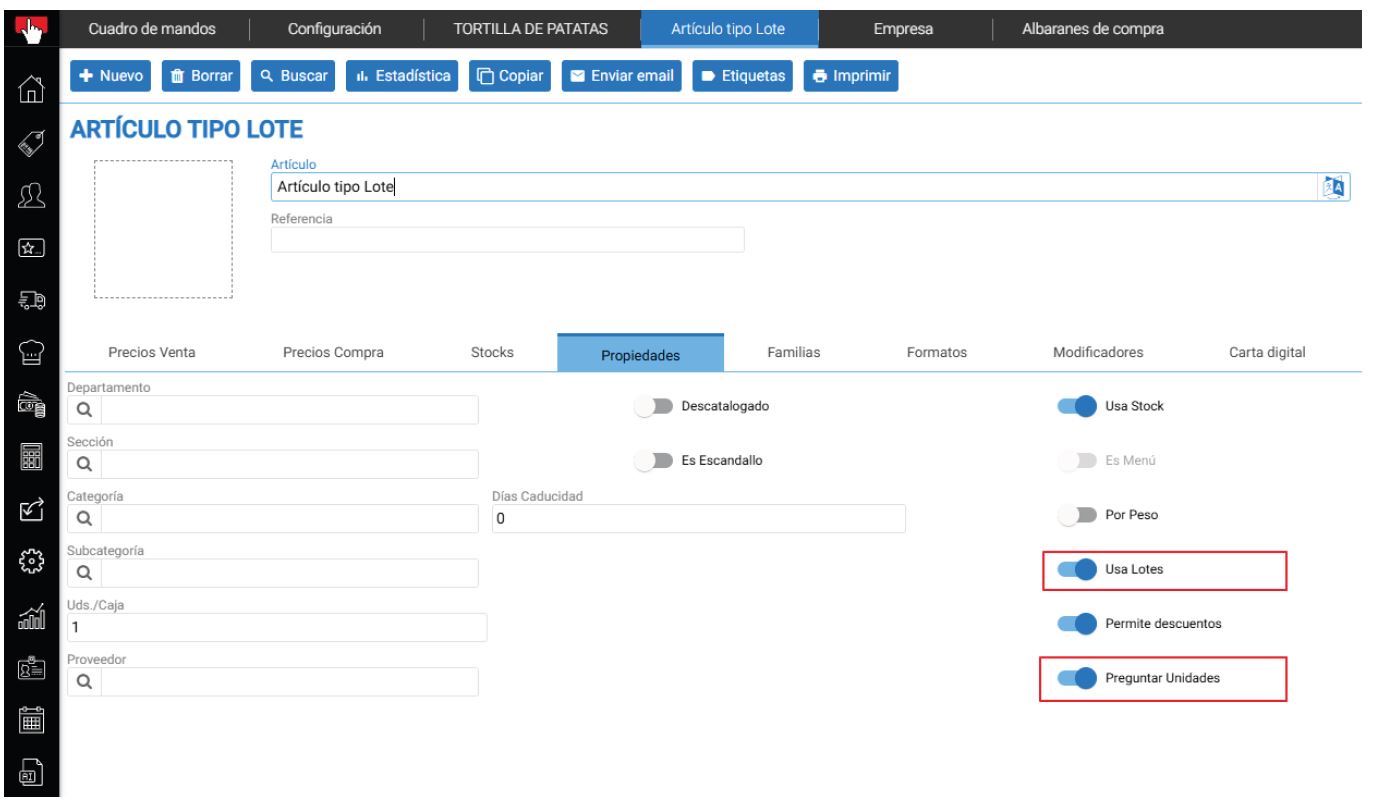
Once the item is created, we will see that in its properties, the "Uses batches" and "Ask for Units" checkboxes are active. The first indicates that said item will be managed as a Batch Item, and the second checkbox allows us to enter more than one unit per BATCH. This second checkbox is activated by default when using a batch-type item, whereas if we switch from a normal-type item to an item that uses batches, it must be activated, unless our batches are only one unit, thus acting more like a serial number.
Likewise, if we navigate to the stocks tab, we will see a second block next to STOCKS with the Lot numbers. We will see examples of this later.
Normal Item + Uses lots
Once we have a standard item, it typically uses generic stock. If we navigate to the "Properties" tab, we will see a property named "USES BATCHES", which is disabled by default; we just need to enable it and we will start working with a batch item.
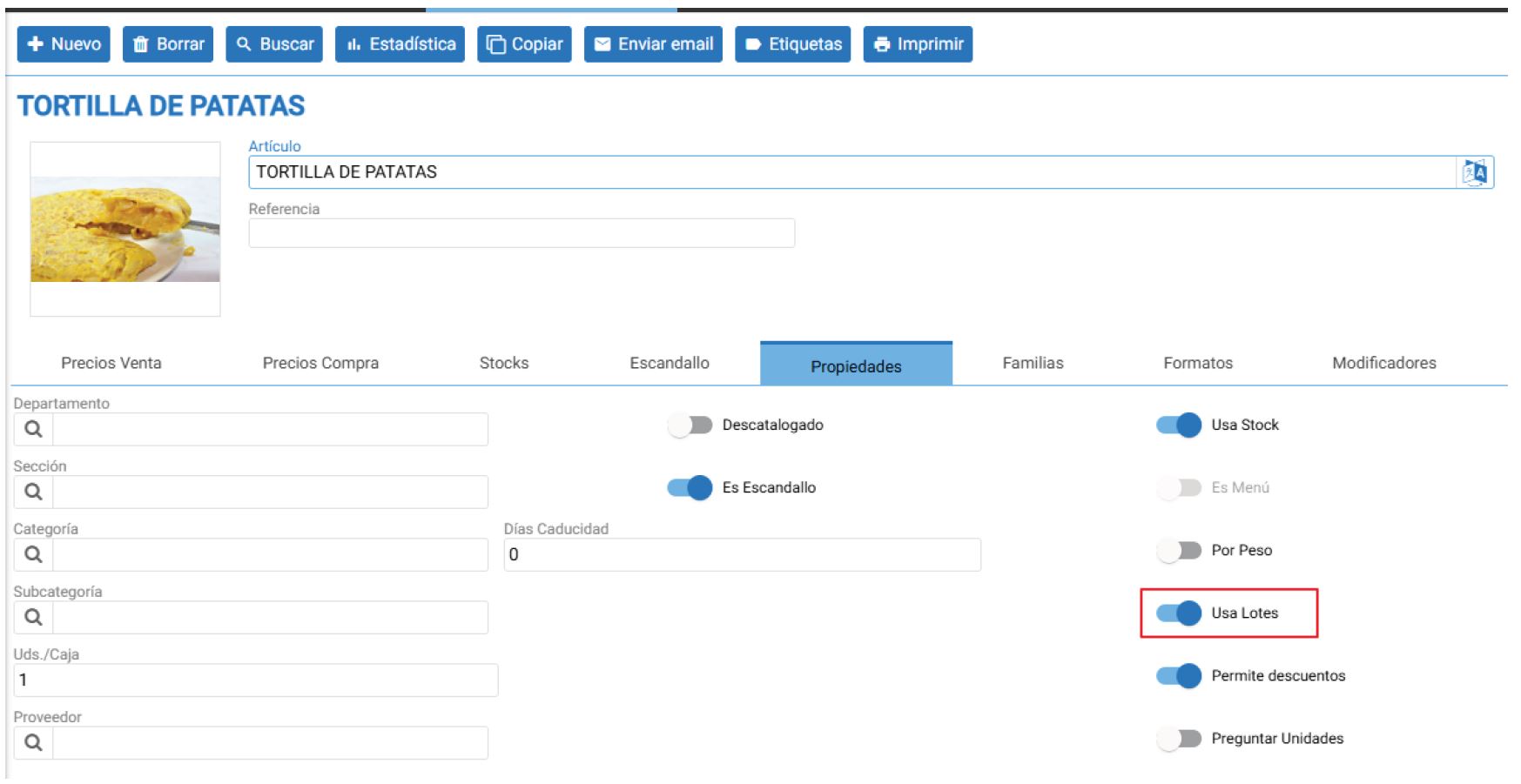

When we switch from a normal item to an item that uses batches, and we already had stock generated, this generated stock will remain in a generic "batch" that normally has no numbering, whereas for new purchases or manufacturing, we can indicate the batch whenever we want. In this way, we create our new stock system where we will see how much stock we have based on the batch.
If we do not indicate the lot, the program will use this generic stock. If we indicate the lot both in the sale and in the purchase or manufacturing, it will not use this generic stock and will perform the corresponding lot movement.
Example:
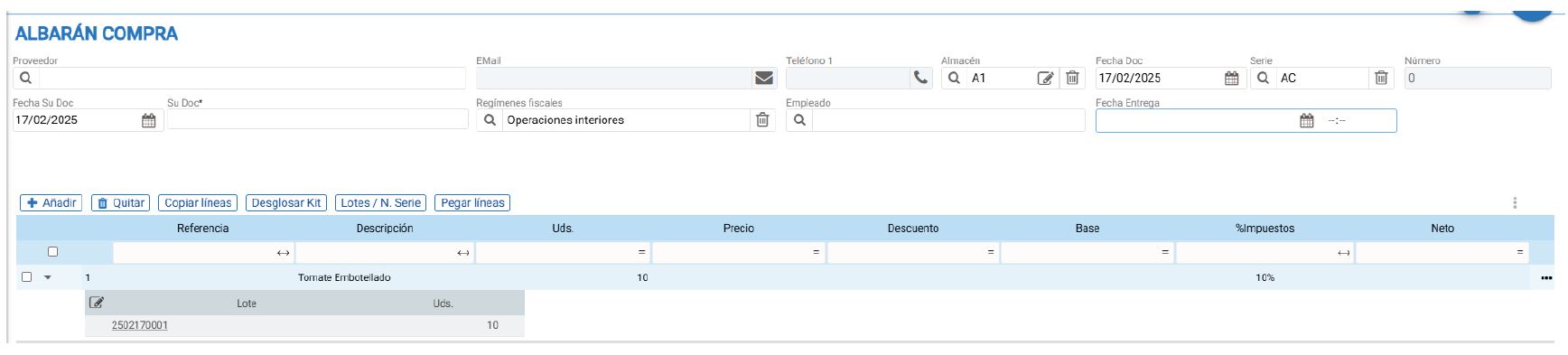
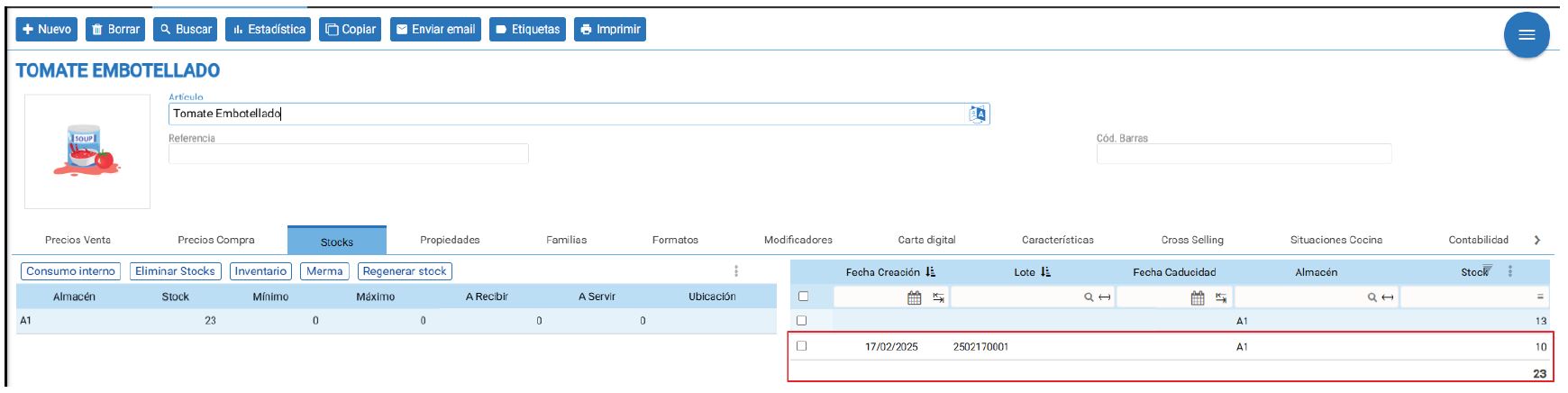
I have this standard item, Bottled Tomato. This item has been purchased multiple times, resulting in a stock of 13 units in Warehouse A1.
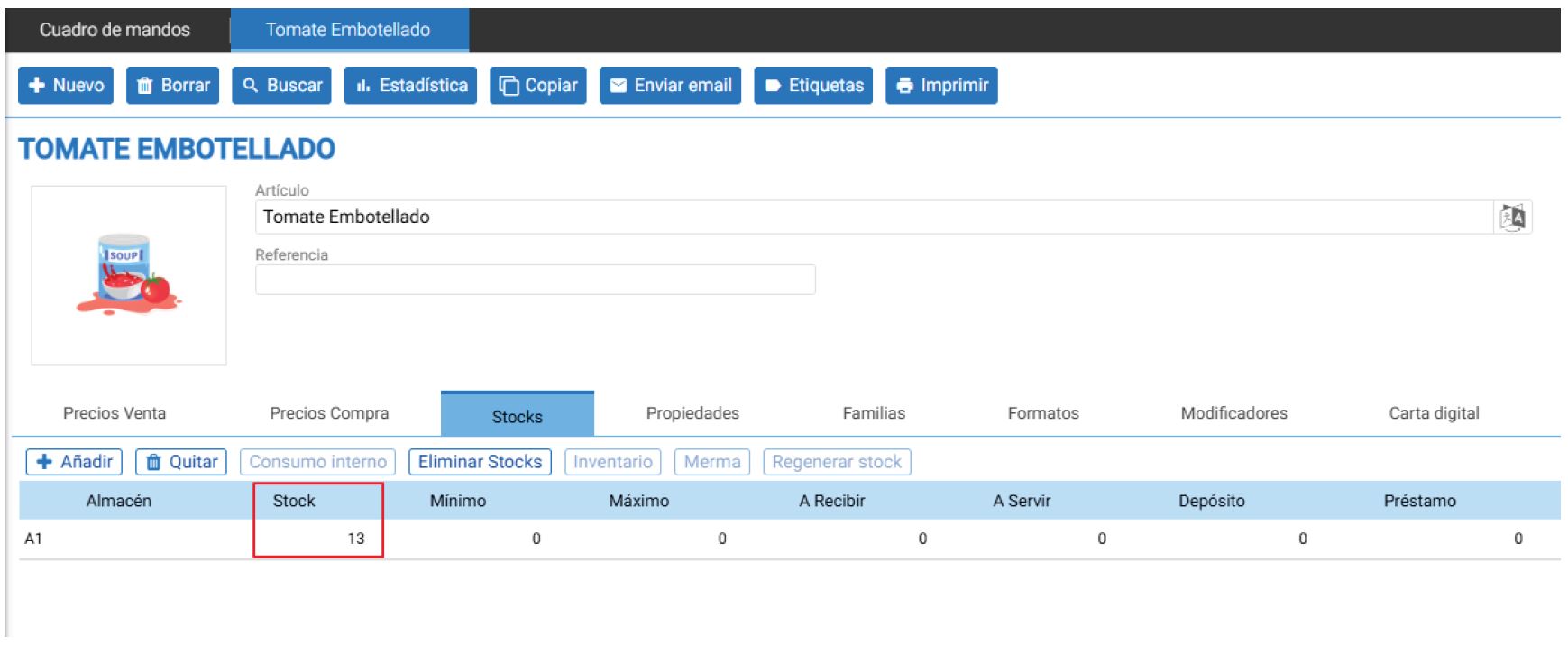
Shortly after its purchase, we were notified that we needed to have traceability of the tomato batches we bought, so it was decided to activate the "Use Batches" checkbox. Since we don't know which document or batch corresponds to the previous stock we purchased, it is assigned to a generic batch.
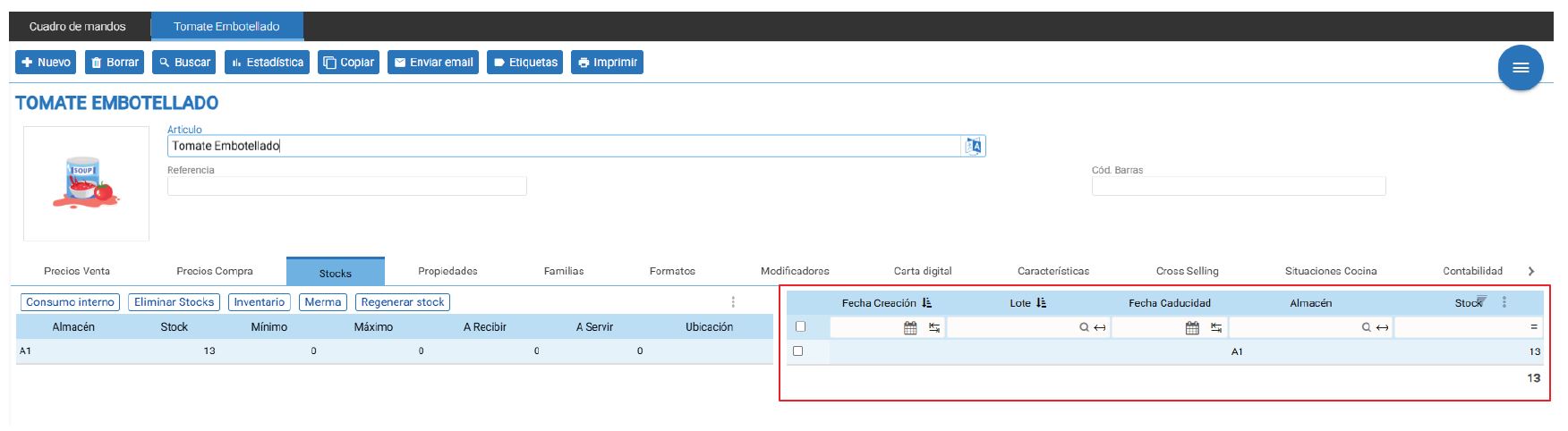
At this point, with new purchases of this item, you will be able to generate batches manually or ask Hioffice to automatically generate the sequence number, which will allow us to view the Stock with batch on the item's card.
Optionally, a zero inventory of the generic Lot can always be performed, and another inventory of the same Item, correctly indicating the lots to regularize this situation.
AI Assistant
Section summary
AI can generate inaccurate information; verify the results.